First, welcome to all new subscribers. We have finally reached more than 79,000 members. I’m very grateful for every one of you and am still overwhelmed by the support and pledges you have sent — Thank you once again.
Your Support: Many of you have pledged, and I couldn't turn payments on since Substack payments aren't available in my country. That's now sorted: Claude Code Masterclass Pro is live; let's keep this going.
In the last Masterclass issue, we covered CLAUDE.md, the file that provides Claude with persistent memory of your project. It defines what Claude should know and how it should behave.
This issue brings you the #3 issue in the Claude Code Masterclass Series — Claude Code Hooks Masterclass
CLAUDE.md only defines rules but doesn’t enforce them.
You can tell Claude, “always run tests before committing” in your CLAUDE.md. Claude will read it, acknowledge it, and then... ask you if you want to run test again and again.
To enforce these rules, we need to run automatic actions that fire at specific points or events.
That’s why Claude Code introduced hooks.
Hooks are not as complicated as many new users think; they are simple to use once you understand the basics.
They are automated actions that trigger at specific points in Claude’s workflow:
Hooks run without asking
Hooks can allow, deny, or modify what happens next
Hook examples: When a file changes, a command executes, or a session starts
In this issue, you will learn the fundamentals of why we need hooks, show you the hooks events, basic hooks examples, and advanced hooks patterns in real projects.
I will take you from understanding basics to implementing production-ready automation.
You’ll master:
What hooks are and when they trigger
Hook types
How to configure hooks in
.claude/settings.jsonExit codes and decision control
Production-ready hook patterns you can use
How hooks and CLAUDE.md work together
Let’s start with understanding the basics.
What Are Hooks?
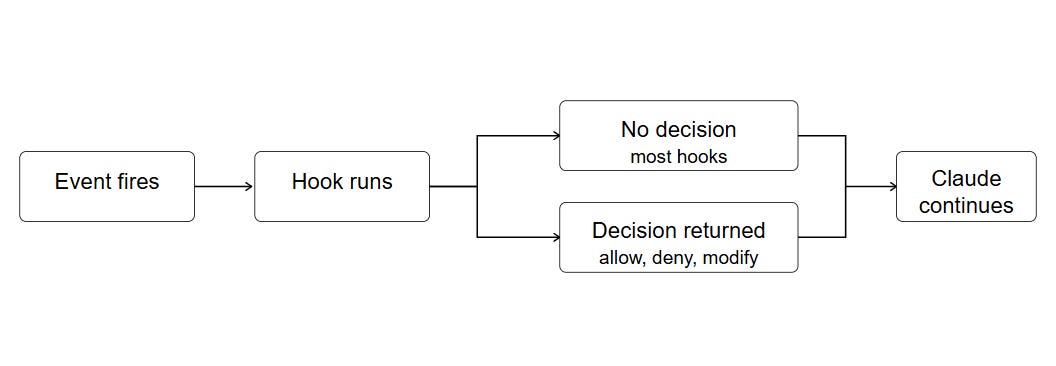
Hooks are event listeners for Claude Code’s workflow.
When Claude performs an action such as running a command, modifying a file, or starting a session, it fires events. Hooks listen for these events and execute automated responses.
Hooks are like middleware in a web framework, where a request comes in, middleware intercepts it, decides whether to allow it, modify it, or block it entirely.
In summary :
For our practical example, we will use a reference project: an AI PDF Chat — SaaS, where users upload PDFs and chat with the docs.
It’s a realistic project with real engineering challenges: file uploads, PDF parsing, vector embeddings, API rate limiting, and streaming chat responses.
I will demonstrate each hook concept with AI PDF Chat project scenarios that mirror what you’d encounter in production.
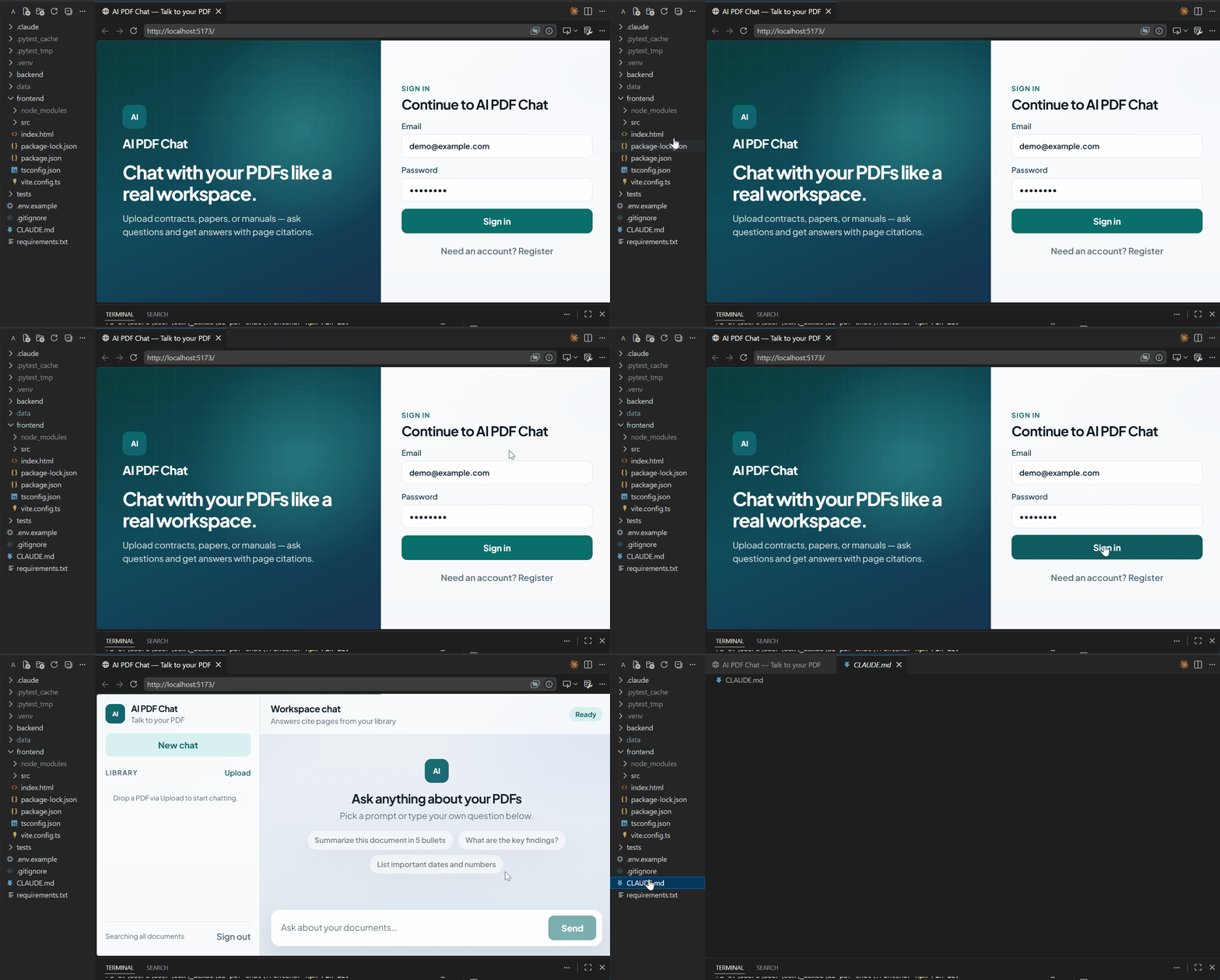
Here’s the project structure:
pdfchat/
├── .claude/
│   ├── settings.json          # Where project hooks live
│   └── hooks/                 # Custom hook scripts
├── CLAUDE.md
├── backend/
│   ├── api/
│   │   ├── auth.py
│   │   ├── documents.py       # PDF upload endpoints
│   │   └── chat.py            # Chat endpoints
│   ├── services/
│   │   ├── pdf_parser.py      # Extract text from PDFs
│   │   ├── embeddings.py      # Chunk and embed content
│   │   └── chat_engine.py     # RAG + LLM responses
│   └── models/
├── frontend/
│   └── src/
├── tests/
└── requirements.txt
Imagine you’ve written a perfect CLAUDE.md for this AI PDF Chat project that includes these rules:
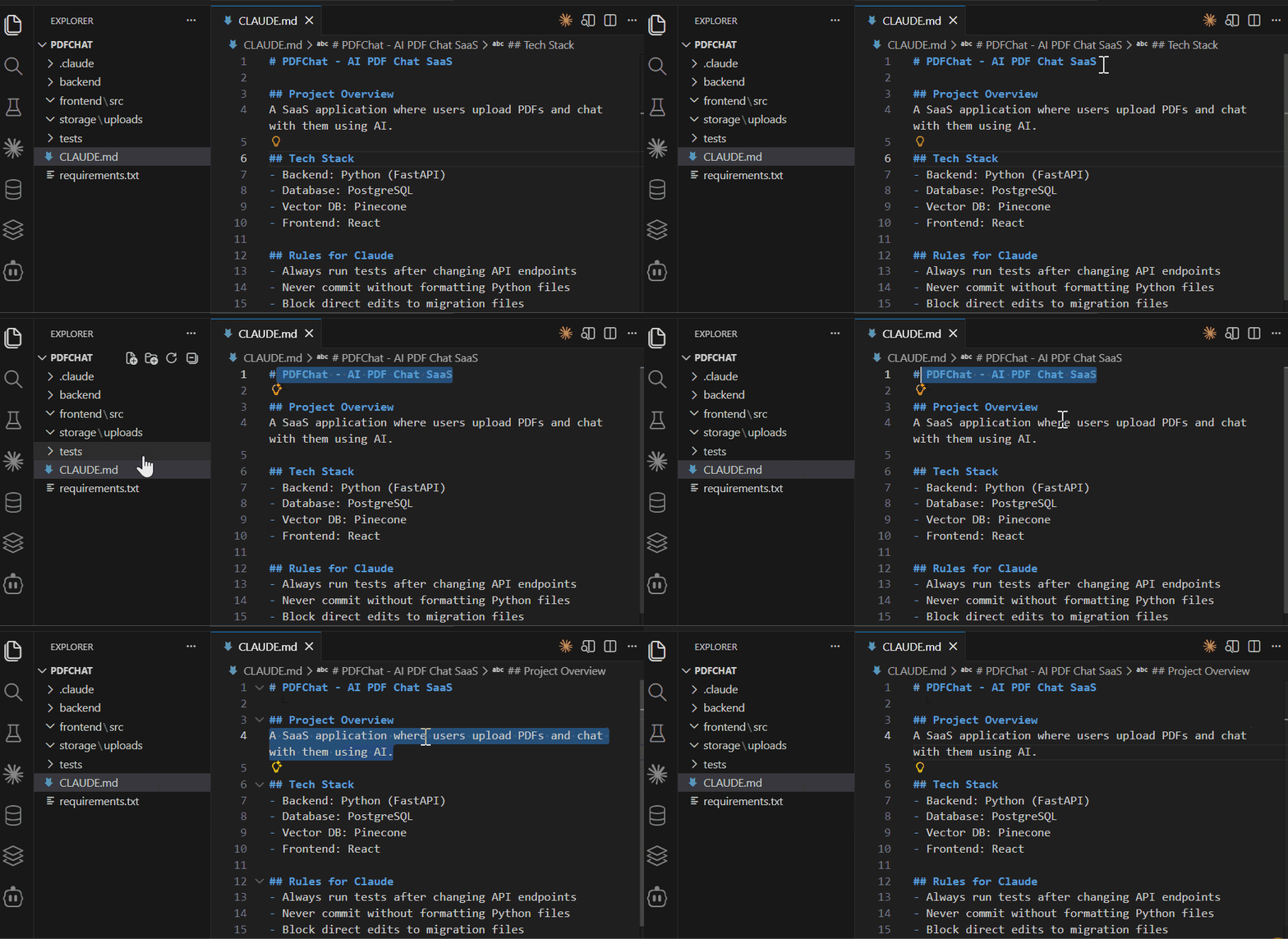
Always run tests after changing API endpoints
Never commit without formatting Python files
Check the database connection before starting work
Block direct edits to migration files
But there is a problem:
Claude reads these rules and understands them, but still asks:
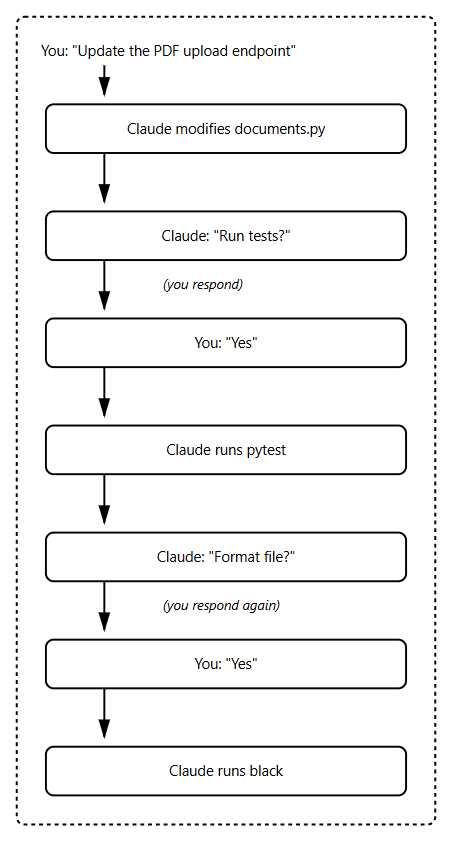
I've updated the chat endpoint. Would you like me to run the tests now?The problem is we lack the enforcement to turn supervision into automation. Let’s visualize this problem :
Without hooks:
With hooks:
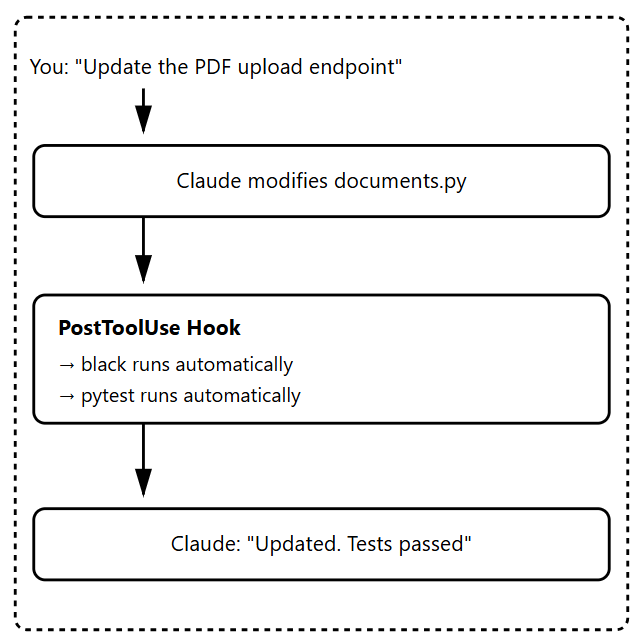
With hooks, we achieved zero manual intervention, reduced the steps, improved efficiency, and made the process faster.
But hooks cannot work unless we anticipate where they will fire and enforce the action, so always remember — hooks are event-driven.
Event-Driven Automation
Hooks operate on a trigger-and-response model. Each hook type responds to a specific event in Claude’s lifecycle.
Claude Code Hooks Lifecycle
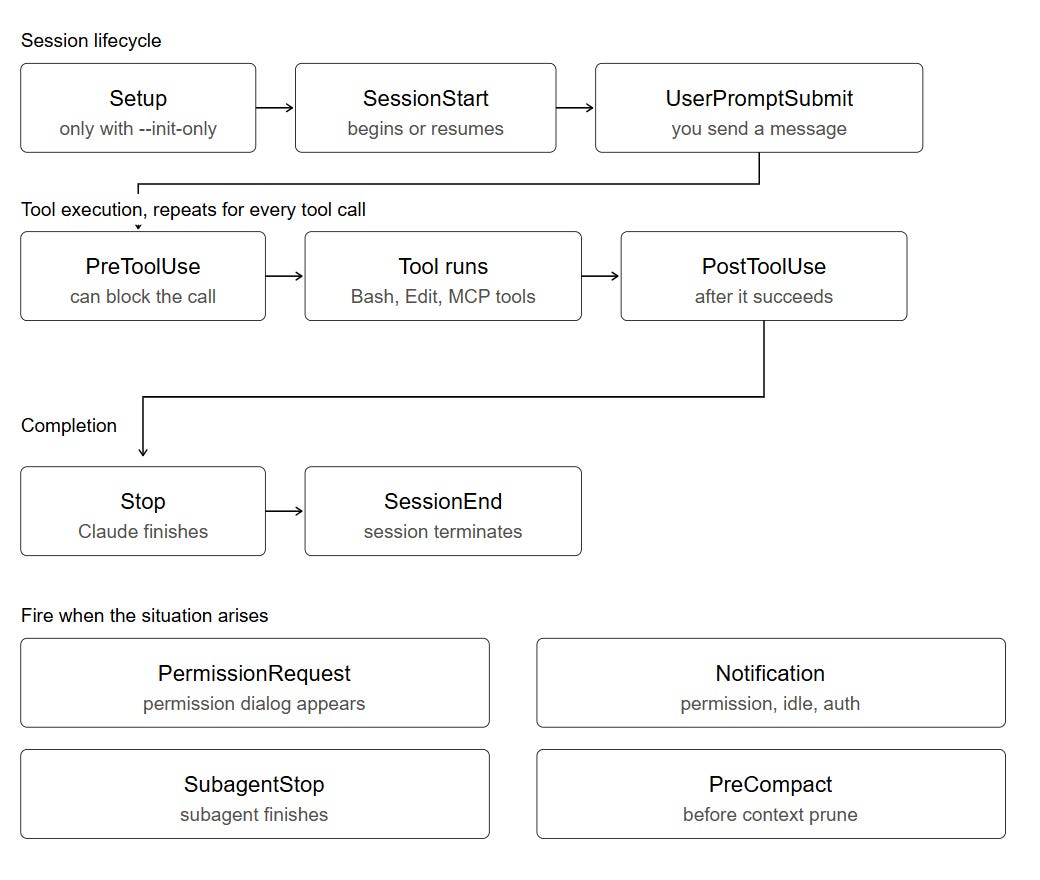
These are the events Claude fires:
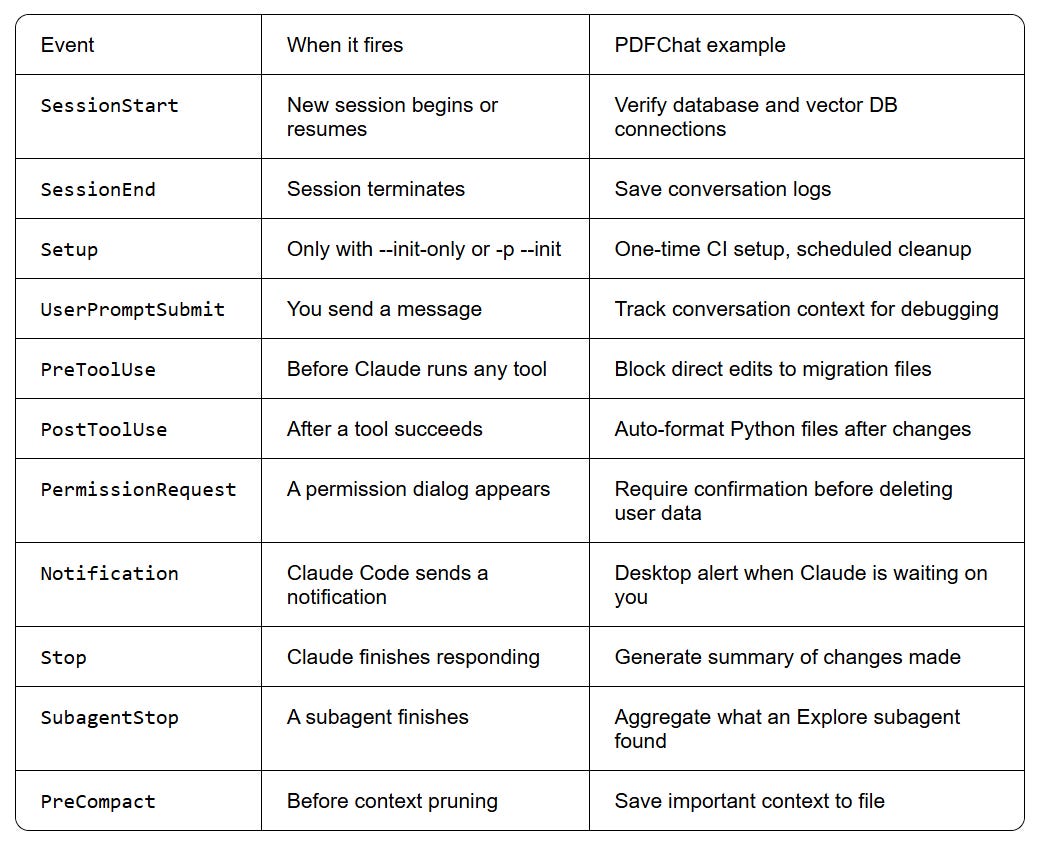
But, you don’t need all hooks, for most projects 3-5 strategically placed hooks is all you need!
For AI PDFChat, we might use:
SessionStart - Check connections before work starts
PreToolUse - Block dangerous operations on production config
PostToolUse - Auto-format and test after code changes
Notification - Desktop alert when Claude is waiting on you
The next question is, how do these hooks fire?
Hooks Execution
Hooks run as shell commands.
When an event fires, Claude:
Checks your settings files for matching hooks
Executes the hook command (or multiple commands in parallel)
Reads the exit code and any JSON the hook printed
Decides what to do next based on the result
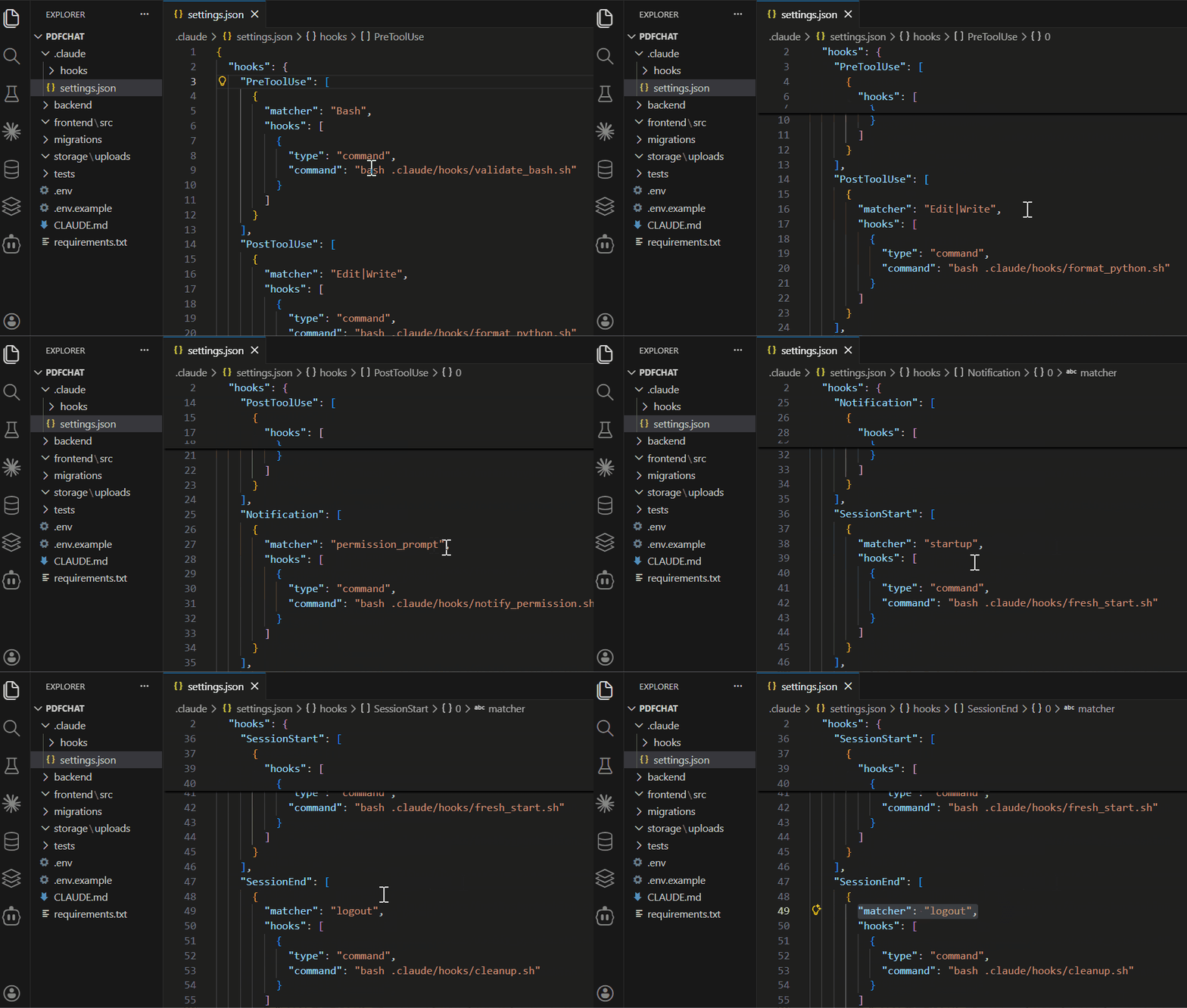
You can see your existing hooks inside the
.claude/settings.json
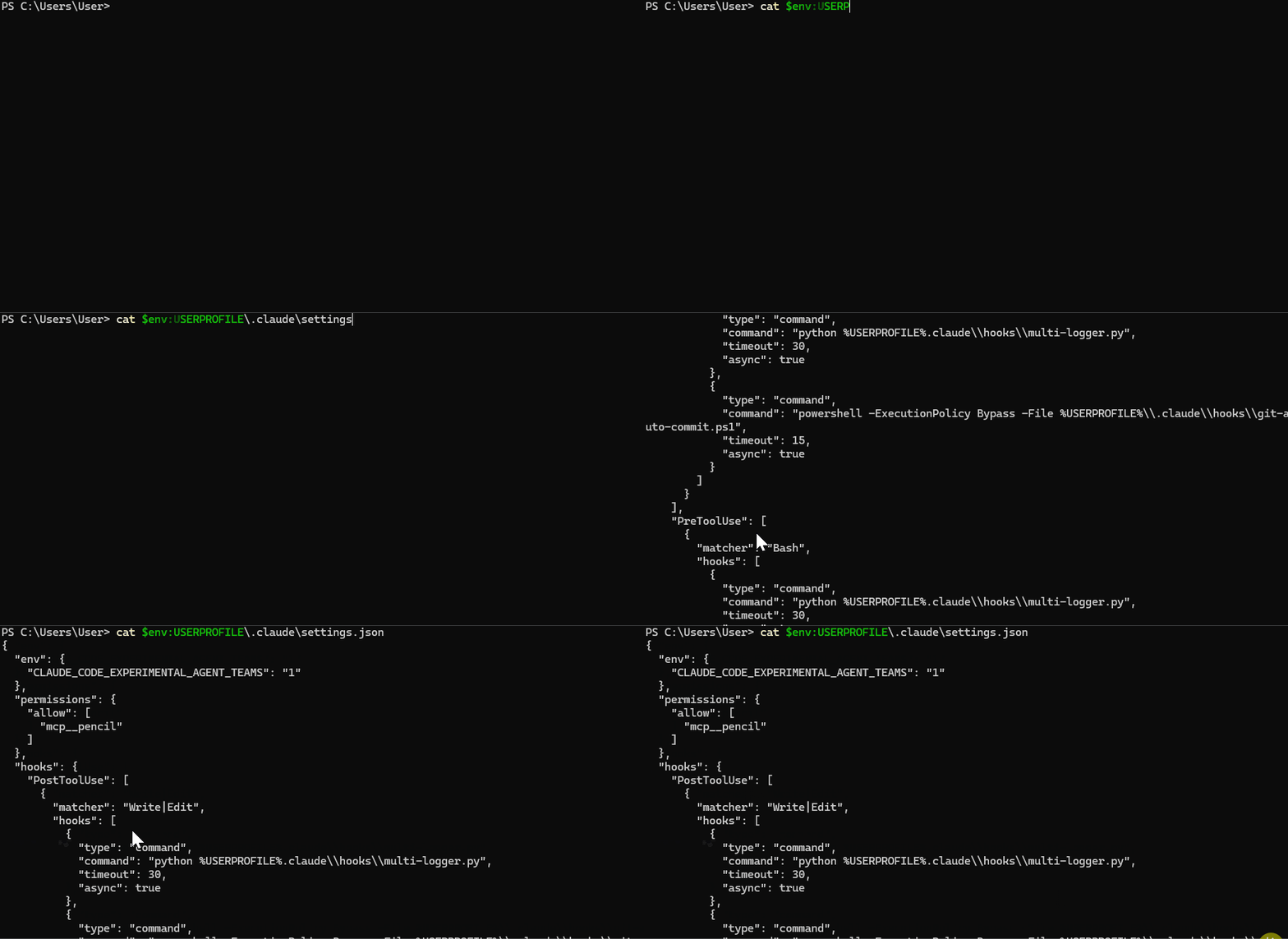
Here’s a simple PostToolUse hook that formats Python files:
{
  "hooks": {
    "PostToolUse": [
      {
        "matcher": "Edit|Write",
        "hooks": [
          {
            "type": "command",
            "if": "Edit(backend/**/*.py)",
            "command": "bash .claude/hooks/format_python.sh"
          }
        ]
      }
    ]
  }
}
And the script, which reads the path from stdin:
#!/bin/bash
# .claude/hooks/format_python.sh
FILE=$(jq -r '.tool_input.file_path')
[[ "$FILE" == *.py ]] && black "$FILE"
exit 0
Execution Steps:
Claude edits a Python file in
backend/The
Edittool triggersThe matcher matches the tool name, and
ifnarrows it to the pathThe hook script runs
blackFile gets formatted
Claude continues without asking
Hooks also have types based on how they work, and it’s important to differentiate.
Command Hooks vs Prompt Hooks
The two hook handler types you'll use most are command hooks and prompt hooks.
Command hooks execute bash commands:
{
  "type": "command",
  "command": "bash .claude/hooks/format_python.sh"
}
Prompt hooks use Claude’s LLM to evaluate (advanced):
{
  "type": "prompt",
  "prompt": "Does this change affect user authentication? Respond with YES or NO."
}
Prompt hooks are powerful but slower and cost more tokens. Most production hooks use commands.
For our AI PDF Chat project, we’ll stick with command hooks because they’re fast and deterministic.
Now that you understand hooks fire at specific triggers, the next question is: what is the process that a hook goes through before it stops —from start to finish?
This is what we refer to as a hook lifecycle.
Here’s what happens when you ask Claude to modify backend/api/chat.py:
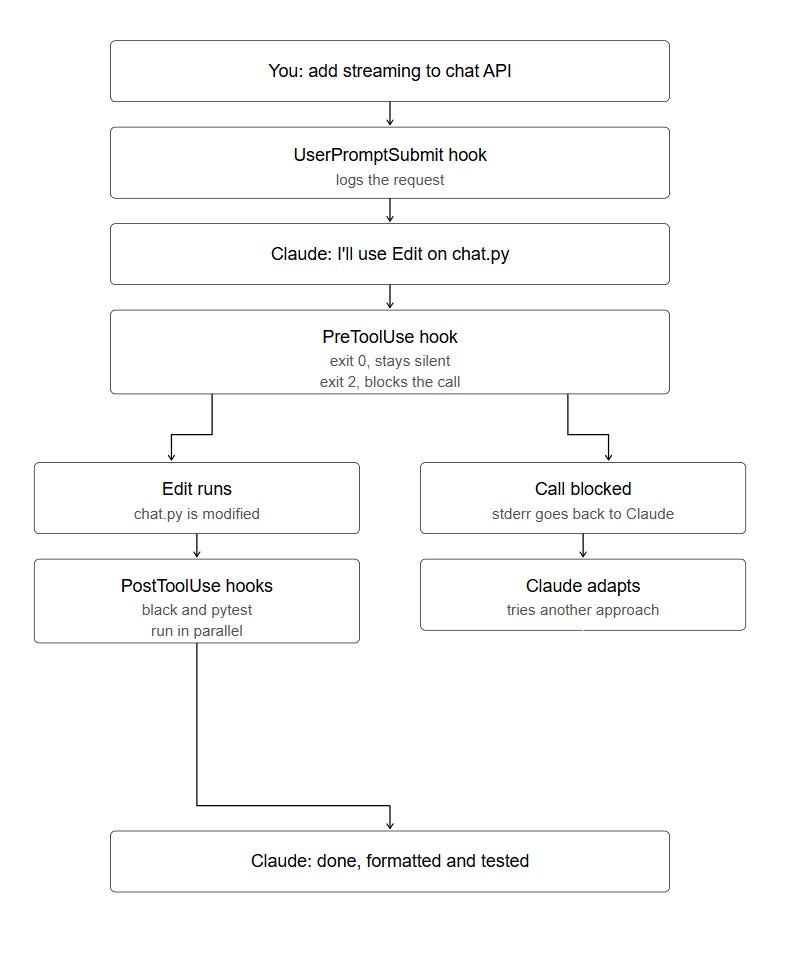
Multiple hooks can fire during a single interaction, and run in parallel when multiple hooks match the same event.
Complete Hook Lifecycle (Practical Examples)
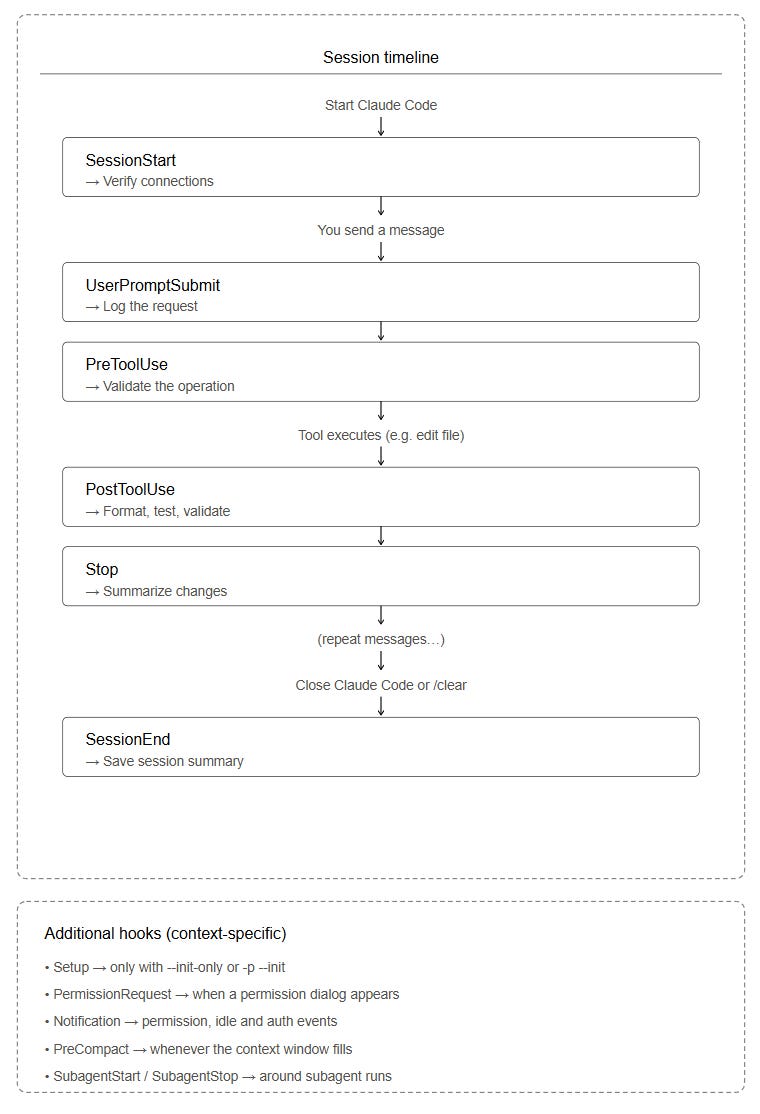
Claude Code provides a variety of hooks.
Each one fires at a different point in the workflow. Understanding when each hook triggers is the key to effective automation.
Let’s walk through all the hook types in chronological order, following our project development session.
1. Setup Hook
When it fires: The very first time Claude Code runs in a project directory.
Runs: Once per project.
Use case: Initialize project dependencies, create config files, and set up databases.
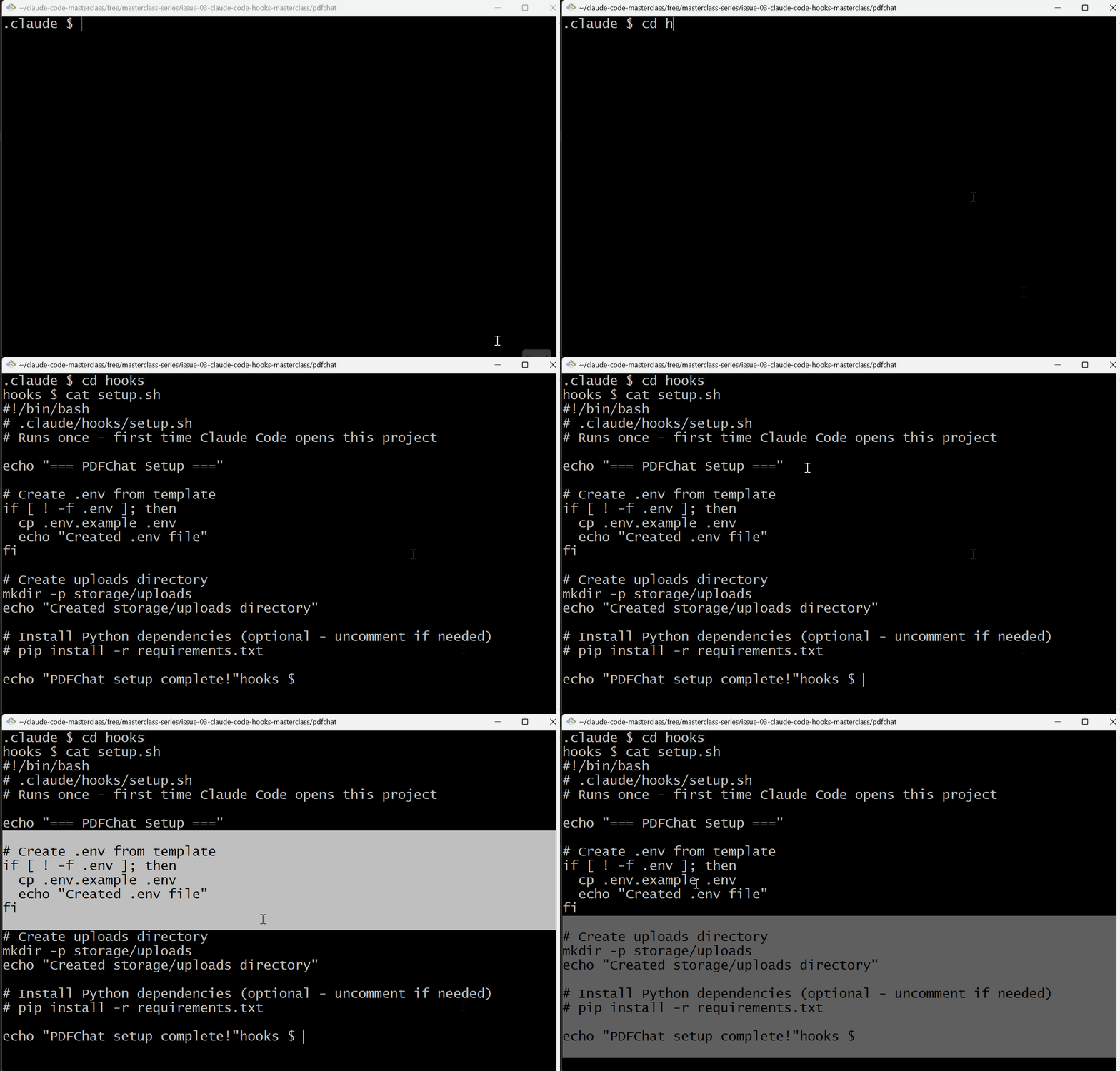
For our project, set up handles for first-time initialization:
{
  "hooks": {
    "SessionStart": [
      {
        "hooks": [
          {
            "type": "command",
            "command": "bash .claude/hooks/session_start.sh"
          }
        ]
      }
    ]
  }
}
The setup script:
#!/bin/bash
# .claude/hooks/setup.sh

# Create .env from template
if [ ! -f .env ]; then
  cp .env.example .env
  echo "Created .env file"
fi

# Install Python dependencies
pip install -r requirements.txt

# Initialize database
python -m alembic upgrade head # Runs alembic upgrade head which could apply migrations to the wrong database without meaning to

# Create uploads directory
mkdir -p storage/uploads

echo "PDFChat setup complete"
When you’d see this: The first time you run Claude Code in a freshly cloned repo.
If you examine my script, I’ve added an instruction to create a .env file if it doesn’t exist. The hook calls this bash script automatically when a session starts.
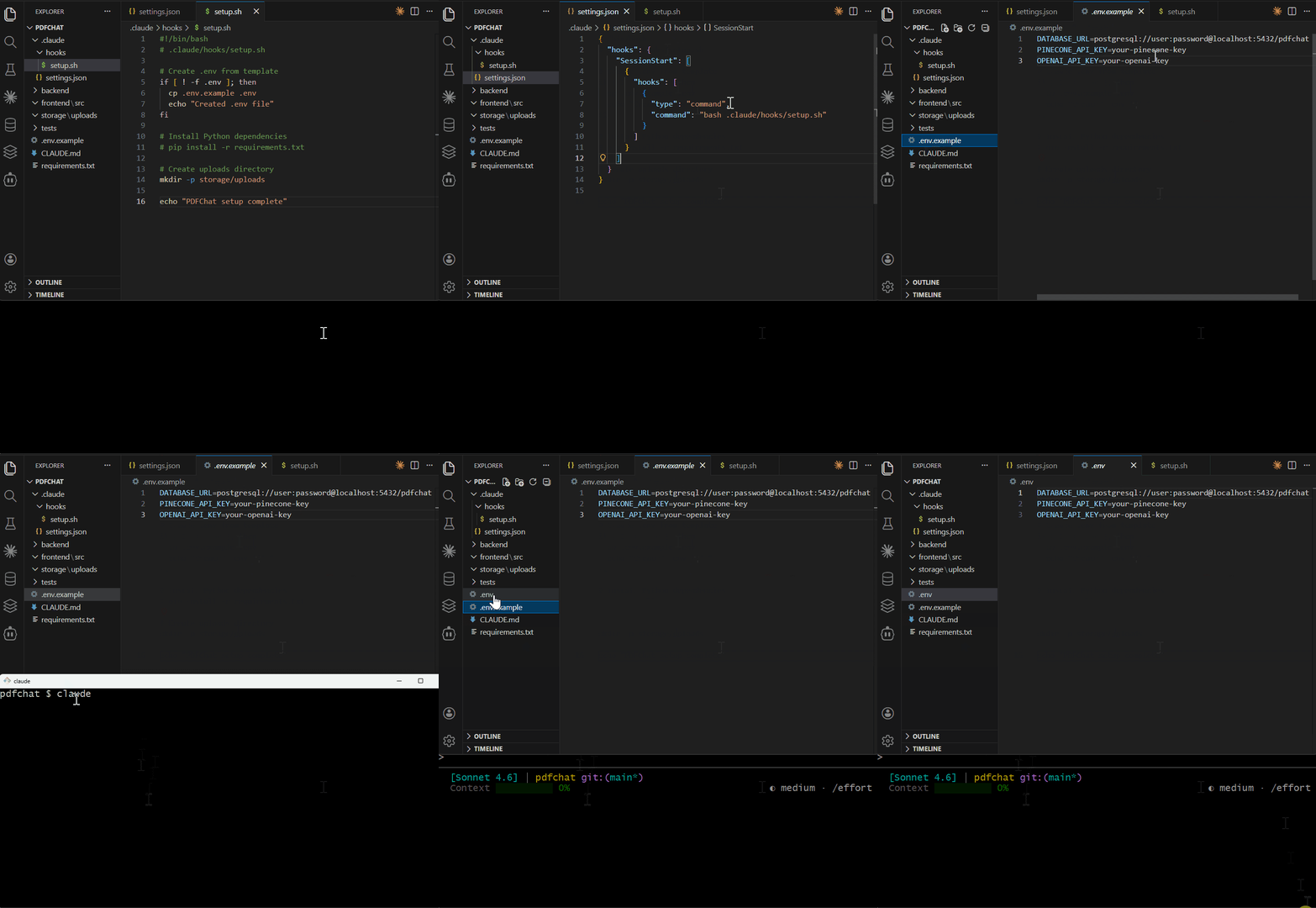
Here’s what happens:
The
SessionStarthook fires when Claude Code opens the projectThe hook runs
.claude/hooks/setup.shThe script checks if
.envexists — if not, it copies from.env.exampleIt also creates the
storage/uploadsdirectory for PDF uploads
When I ran Claude Code for the first time in this project, the hook fired and created the
.envfile using the template I provided in the project root.
2. SessionStart Hook
When it fires: Every time you start a new Claude Code session.
Runs: Once per session.
Use case: Verify connections, check environment, validate prerequisites.
Whatever a SessionStart hook prints to stdout is added to Claude's context before your first message. That makes it the right place to inject live state: current branch, uncommitted files, which services are up.
For our project, SessionStart checks that critical services are available:
{
  "hooks": {
    "SessionStart": [
      {
        "hooks": [
          {
            "type": "command",
            "command": "python .claude/hooks/session_start.py"
          }
        ]
      }
    ]
  }
}
The session start script example for production:
#!/usr/bin/env python3
# .claude/hooks/session_start.py

import sys
import os
from sqlalchemy import create_engine
from pinecone import Pinecone

def check_database():
    """Verify PostgreSQL connection"""
    try:
        engine = create_engine(os.getenv('DATABASE_URL'))
        engine.connect()
        return True
    except Exception as e:
        print(f"Database connection failed: {e}")
        return False

def check_vector_db():
    """Verify Pinecone connection"""
    try:
        pc = Pinecone(api_key=os.getenv('PINECONE_API_KEY'))
        pc.list_indexes()
        return True
    except Exception as e:
        print(f"Pinecone connection failed: {e}")
        return False

def check_openai_key():
    """Verify OpenAI API key exists"""
    if not os.getenv('OPENAI_API_KEY'):
        print("OPENAI_API_KEY not set")
        return False
    return True

if __name__ == "__main__":
    checks = [
        check_database(),
        check_vector_db(),
        check_openai_key()
    ]

    if all(checks):
        print("All systems ready")
        sys.exit(0)
    else:
        print("Some services unavailable")
        sys.exit(0)
For my test, I will run a simple script to check the environment on session start :
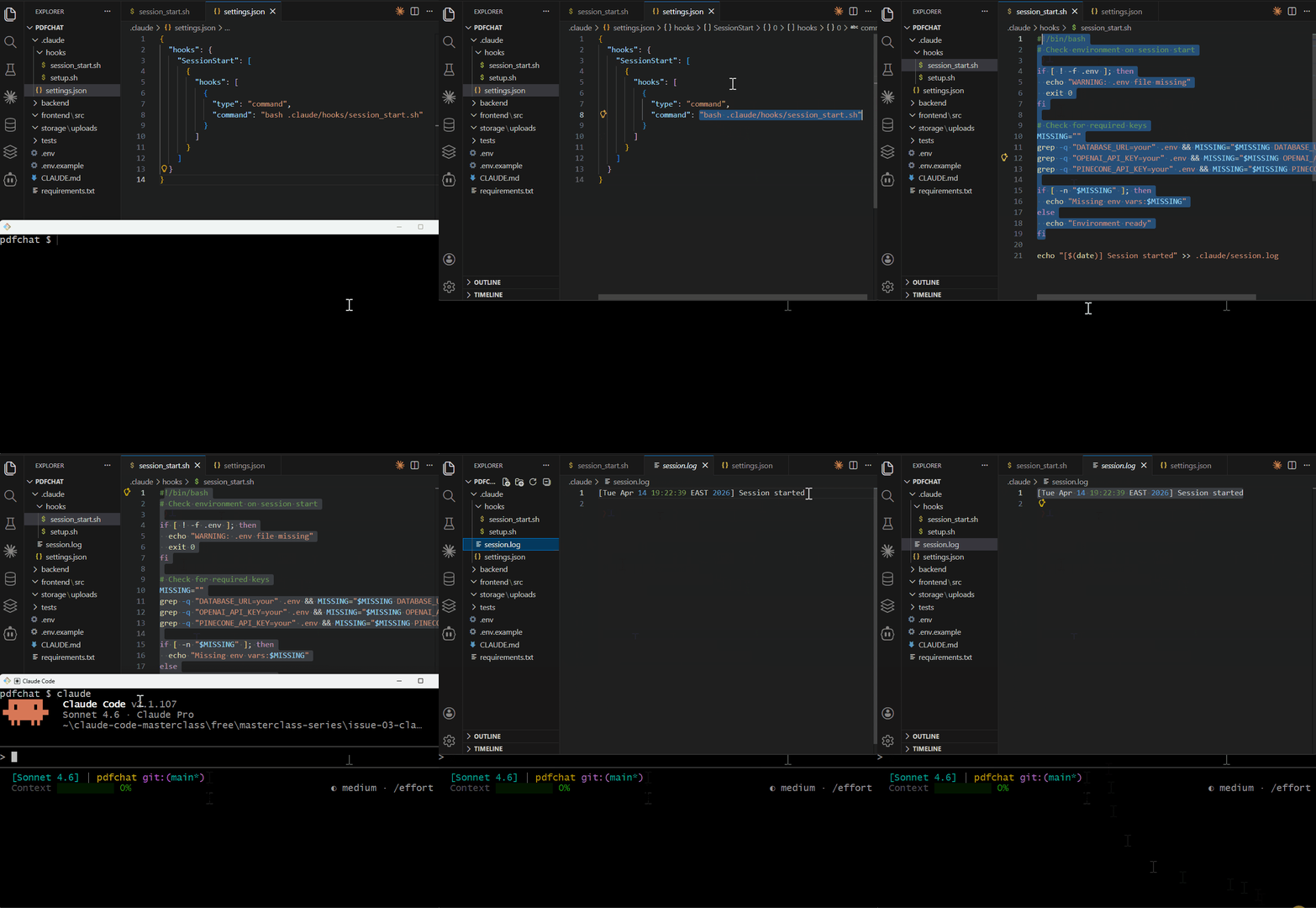
The script verifies that:
The
.envfile existsRequired API keys are configured
It logs the session start time for debugging
When you’d see this: Every time you open Claude Code. It runs before Claude processes your first message.
Note: SessionStart hooks should be fast, and network checks add startup latency
3. UserPromptSubmit Hook
When it fires: Every time you send a message to Claude.
Runs: Before Claude processes your request.
Use case: Logging, context tracking, request validation.
For our project, we might log all requests for debugging:
{
  "hooks": {
    "UserPromptSubmit": [
      {
        "hooks": [
          {
            "type": "command",
            "command": "bash .claude/hooks/log_prompt.sh"
          }
        ]
      }
    ]
  }
}
For my test, I'll log every message I send to Claude.
#!/bin/bash
# .claude/hooks/log_prompt.sh
PROMPT=$(jq -r '.prompt')
echo "[$(date)] User: $PROMPT" >> .claude/conversation.log
exit 0
This hook fires before Claude processes the request — useful for debugging or tracking conversation flow.
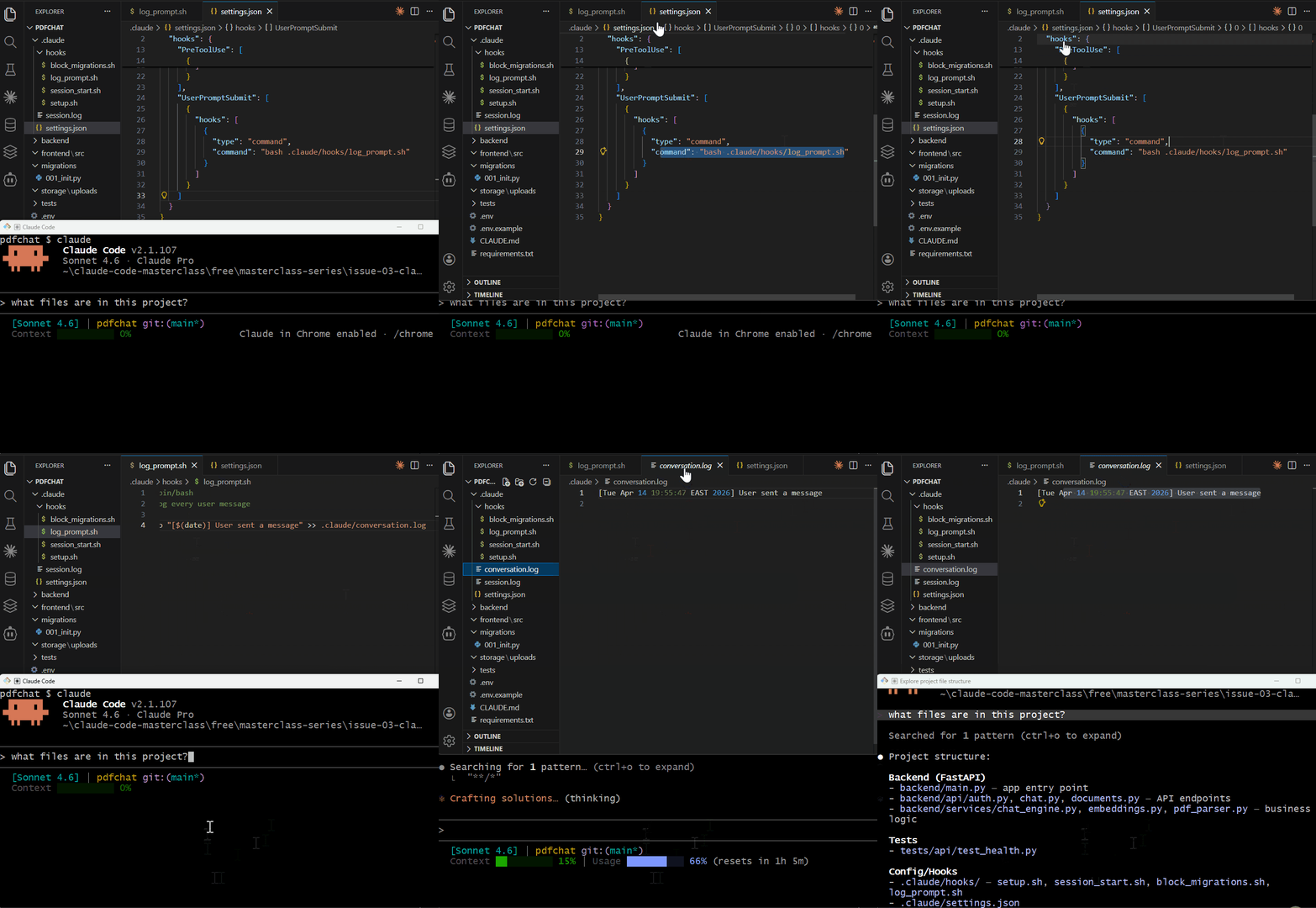
Quick Notes:
UserPromptSubmit hooks time out after 30 seconds. This hook blocks your prompt until it finishes, so keep it fast.
Anything a UserPromptSubmit hook prints to stdout is added to Claude's context alongside your message. Redirect to a file if you only want a log.
Most projects don’t need this hook, but it’s invaluable when debugging complex workflows or tracking how long tasks take between prompts.
4. PreToolUse Hook
When it fires: Before Claude executes any tool (bash, edit, write, etc).
Runs: Every time a tool is about to execute.
Use case: Block dangerous operations, validate inputs, and enforce policies.
For our project, PreToolUse prevents accidental edits to database migrations:
{
  "hooks": {
    "PreToolUse": [
      {
        "matcher": "Edit|Write",
        "hooks": [
          {
            "type": "command",
            "command": "bash .claude/hooks/block_migrations.sh"
          }
        ]
      }
    ]
  }
}
The blocking script:
#!/bin/bash
# .claude/hooks/block_migrations.sh
FILE=$(jq -r '.tool_input.file_path')

if [[ "$FILE" == *migrations/* ]]; then
  echo "Direct migration edits are blocked." >&2
  echo "Use: alembic revision --autogenerate -m 'description'" >&2
  exit 2
fi

exit 0
For my test, I'll block direct edits to migration files. The hook checks if the file path contains "migrations" and blocks the edit with exit code 2.
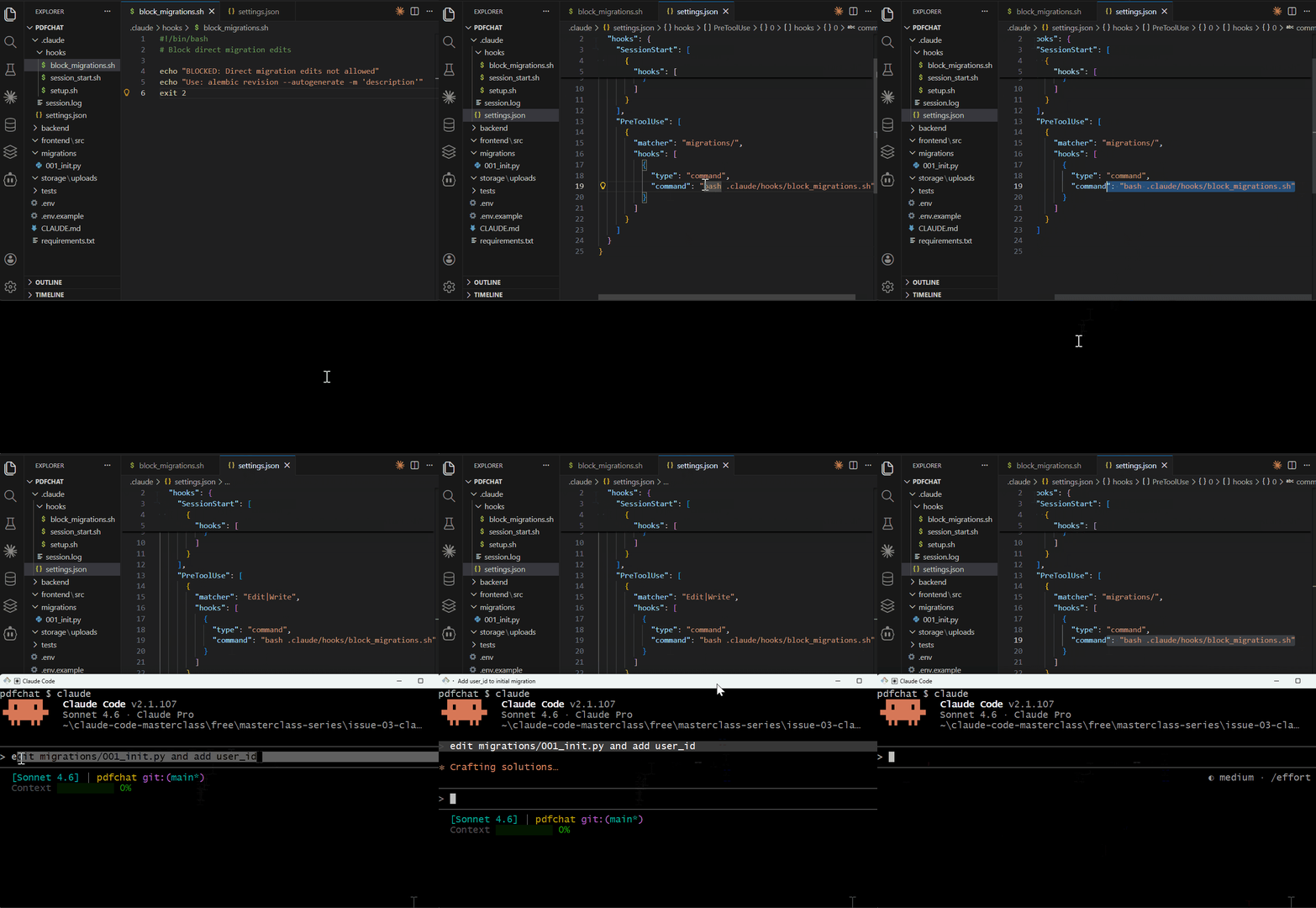
When I asked Claude to edit migrations/001_init.py —the hook intercepted the request and blocked it.
Claude understood the restriction and suggested the correct workflow, using Alembic to generate migrations properly.
Claude tries to edit a migration file. Hook fires and Exit code 2 blocks it. Claude sees the error and suggests the correct approach. You would see this when you ask Claude to “fix that migration file,” and it tries to edit it directly.
5. PostToolUse Hook
When it fires: After Claude successfully executes a tool.
Runs: Every time a tool completes.
Use case: Auto-formatting, running tests, validation, and cleanup.
For our project, PostToolUse auto-formats Python files after any edit:
{
  "hooks": {
    "PostToolUse": [
      {
        "matcher": "Edit|Write",
        "hooks": [
          { "type": "command", "command": "bash .claude/hooks/format_python.sh" }
        ]
      }
    ]
  }
}
Script:
INPUT=$(cat)
FILE=$(echo "$INPUT" | grep -o '"file_path":"[^"]*"' | cut -d'"' -f4)
if [[ "$FILE" == *.py ]]; then
  black "$FILE" 2>/dev/null
  echo "[$(date)] Formatted: $FILE" >> .claude/format.log
fi
For my test, I'll auto-format Python files after every edit. The hook runs black on any Python file Claude creates or modifies.
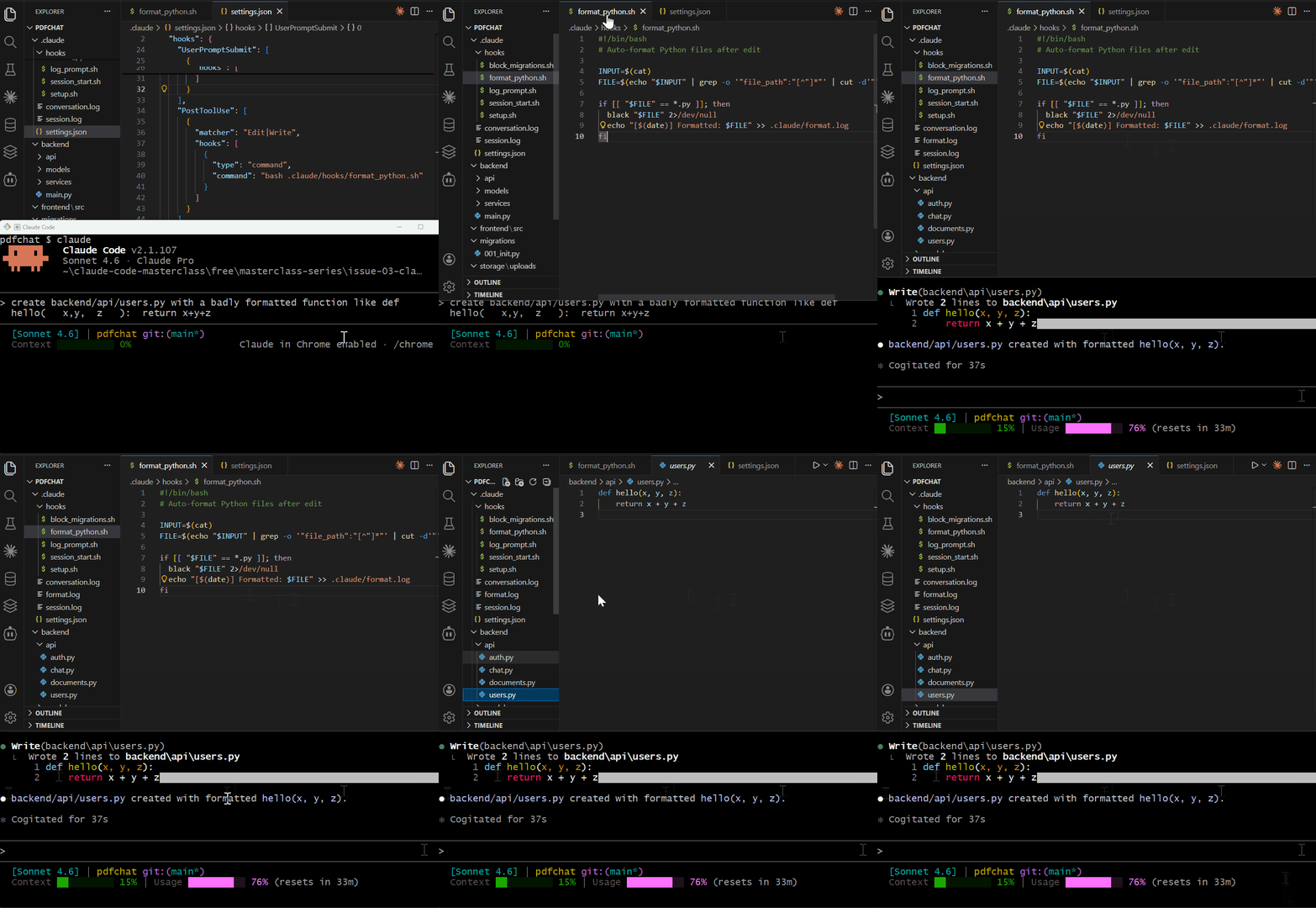
I asked Claude to create a poorly formatted function: def hello( x,y, z ): return x+y+z
The moment the file was written, the hook ran black and reformatted it : indentation, spacing, PEP 8 compliant. You would see this every time Claude edits a Python file in backend/.
6. Notification Hook
When it fires: When Claude wants to notify you of something.
Runs: On informational events (not blocking).
Use case: Send alerts to Slack, log important events, or trigger webhooks.
For PDFChat, we might alert when tests fail:
{
  "hooks": {
    "Notification": [
      {
        "matcher": "permission_prompt|idle_prompt",
        "hooks": [
          { "type": "command", "command": "bash .claude/hooks/notify_slack.sh" }
        ]
      }
    ]
  }
}
For my test, I tested logging every notification Claude Code sends.
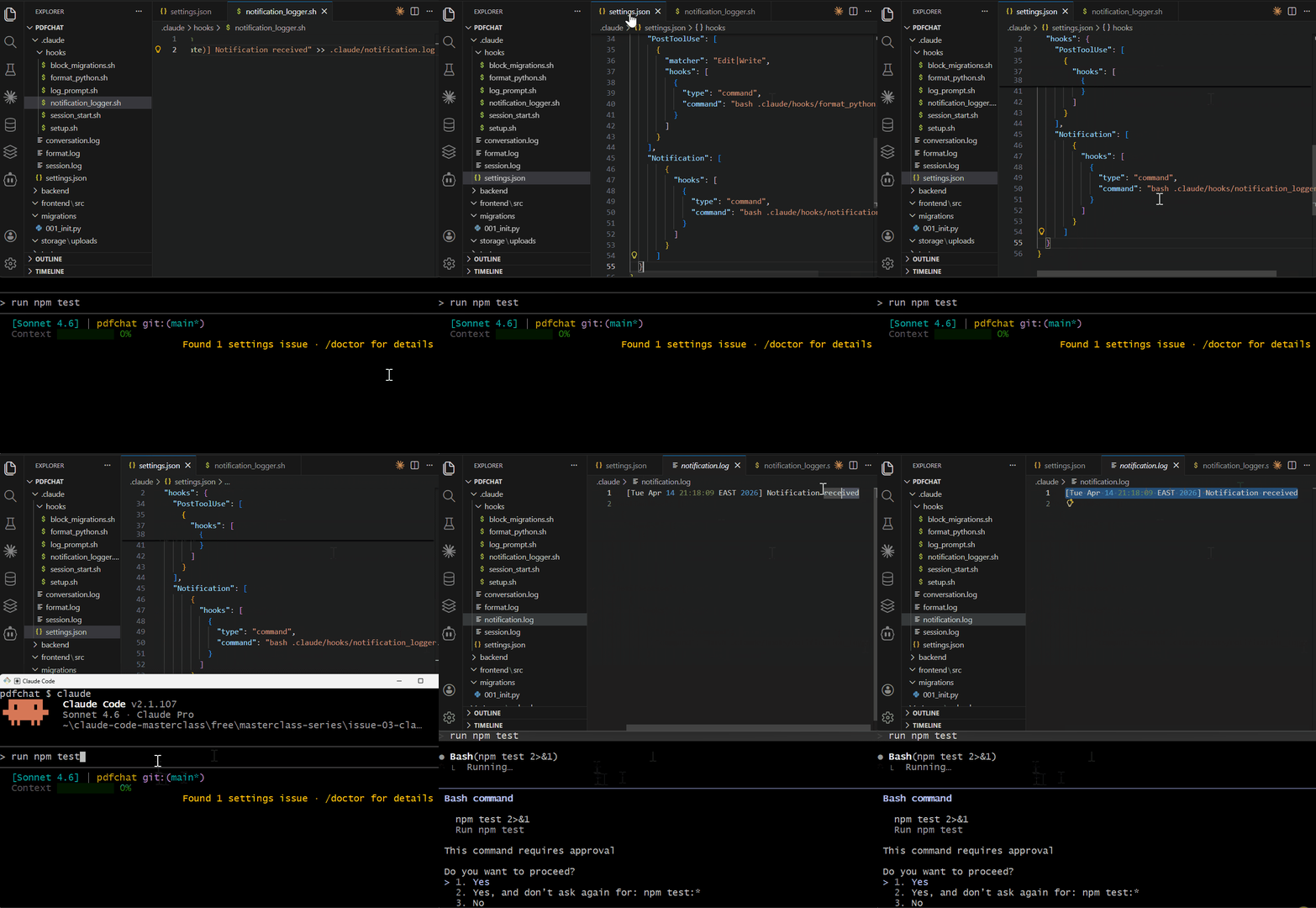
Notifications fire when Claude needs permission, goes idle, or completes authentication.
You would use it for integrations like Slack alerts or desktop notifications when Claude is waiting for you.
7. PermissionRequest Hook
When it fires: When Claude needs explicit permission for an operation.
Runs: On sensitive operations that require approval.
Use case: Add additional validation before destructive actions.
A good example for our project: we require confirmation before deleting user documents:
{
  "hooks": {
    "PermissionRequest": [
      {
        "matcher": "Bash",
        "hooks": [
          { "type": "command", "command": "bash .claude/hooks/guard_uploads.sh" }
        ]
      }
    ]
  }
}
When Claude tries to delete a PDF from user storage, you will see this hook in action.
For my test, I'll log every time Claude asks for permission. This fires when Claude needs approval for sensitive operations, such as running commands or deleting files.
I created a permission logger script, then asked Claude to do something requiring permission: run ls -la
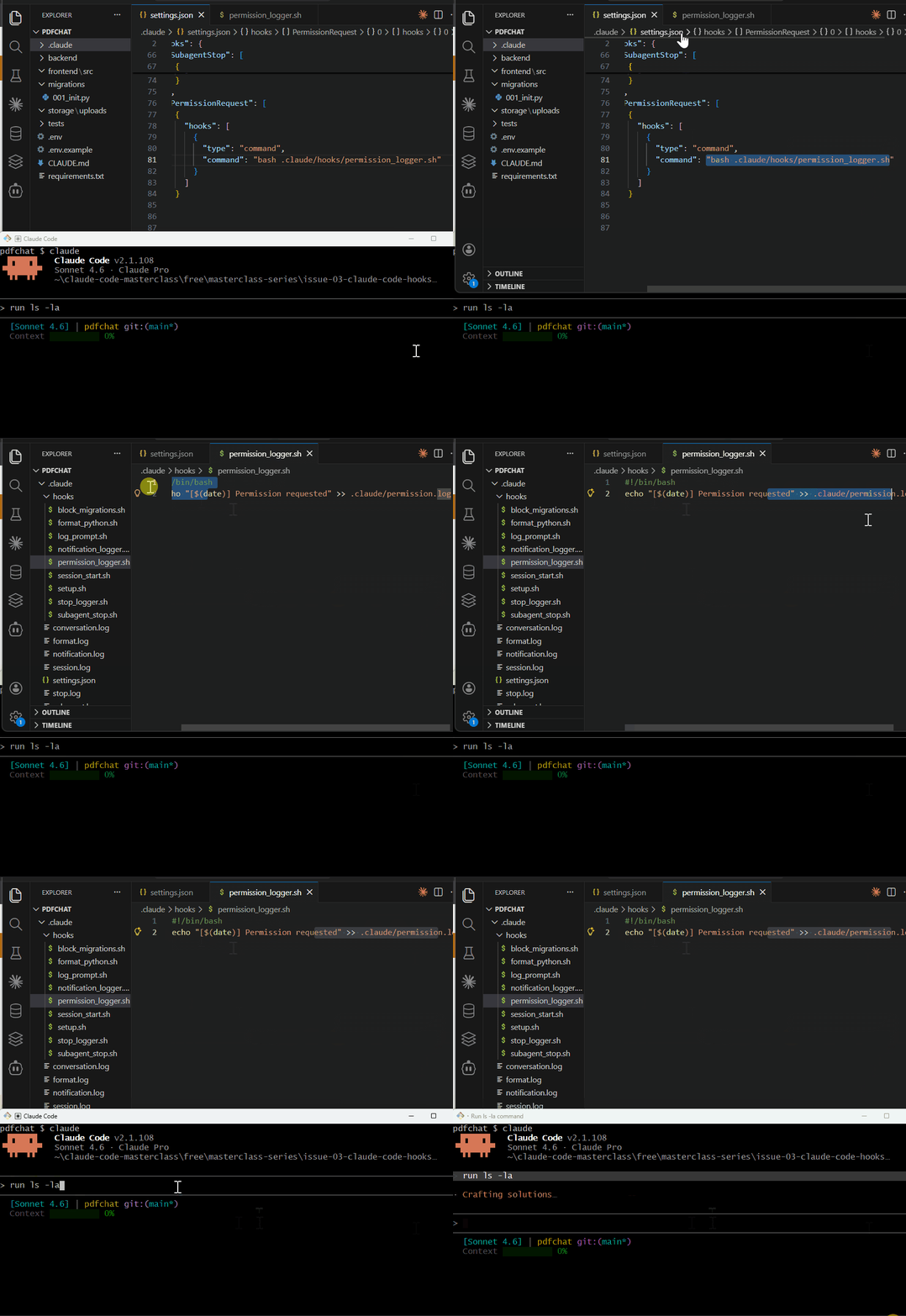
You can use it to auto-approve certain operations, add extra validation before destructive actions, or log all permission requests for audit trails.
#!/bin/bash
# Auto-approve read-only git commands
CMD=$(jq -r '.tool_input.command')

if [[ "$CMD" =~ ^git\ (status|log|diff|branch) ]]; then
  jq -n '{
    hookSpecificOutput: {
      hookEventName: "PermissionRequest",
      decision: { behavior: "allow" }
    }
  }'
fi

exit 0
8. Stop Hook
When it fires: When Claude completes a task.
Runs: At the end of Claude’s response.
Use case: Generate summaries, update logs, clean up temp files.
For our project, we might summarize what changed:
{
  "hooks": {
    "Stop": [
      {
        "hooks": [
          { "type": "command", "command": "bash .claude/hooks/stop_logger.sh" }
        ]
      }
    ]
  }
}
For my test, I'll log every time Claude completes a task.
The Stop hook fires when Claude finishes responding; useful for summaries, cleanup, or triggering follow-up actions.
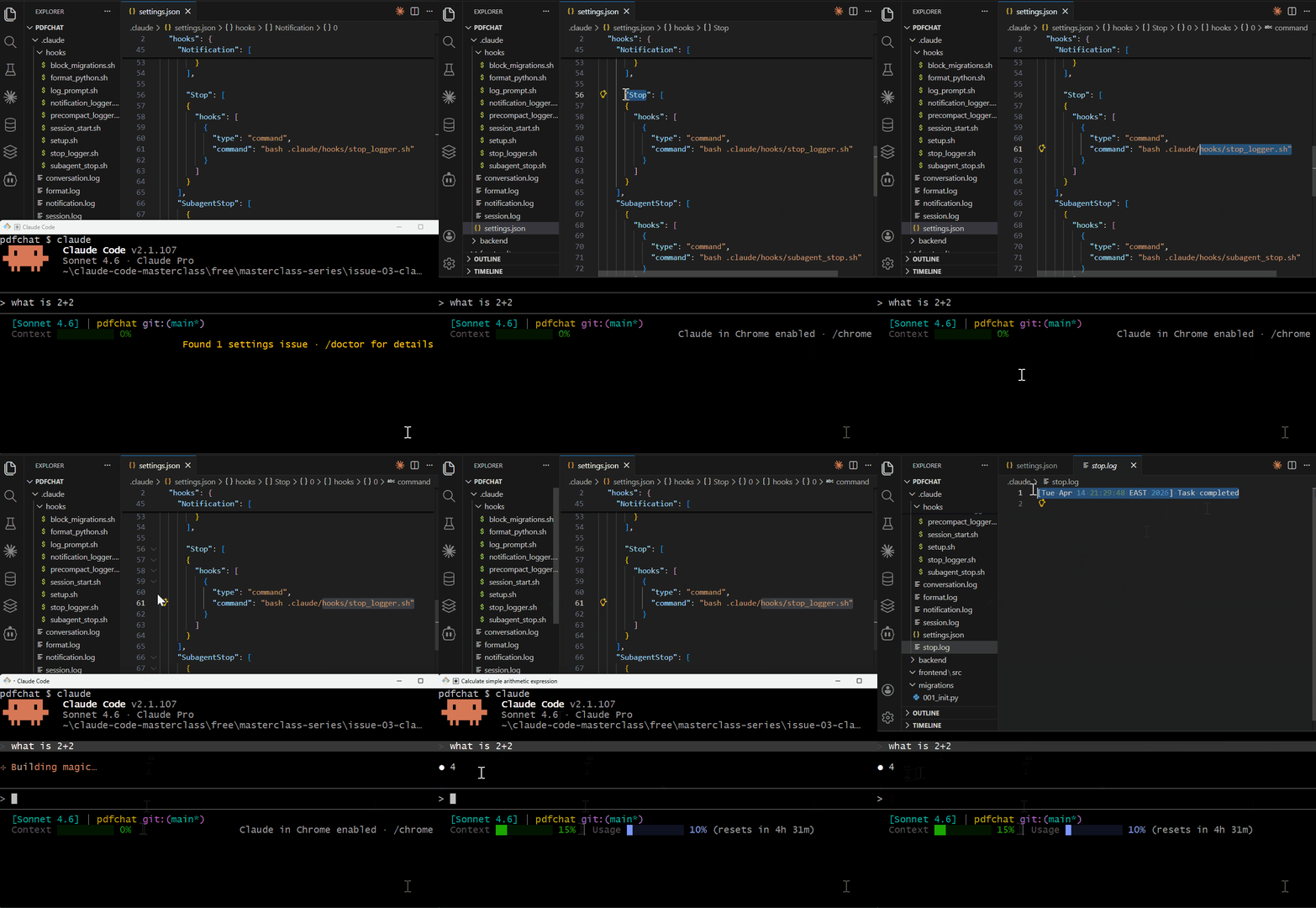
This would be useful after Claude finishes implementing a feature. You could extend this to generate git diffs, run a final test suite, or send a "task complete" notification to Slack.
Careful with Stop hooks. Exit 2 stops Claude from stopping and continues the turn. Check stop_hook_active in the hook input before returning a blocking exit, or you'll loop:
ACTIVE=$(jq -r '.stop_hook_active')
[[ "$ACTIVE" == "true" ]] && exit 0
9. SubagentStop Hook
When it fires: When a subagent (parallel task) completes.
Runs: After delegated tasks finish.
Use case: Aggregate results, merge outputs, and clean up subagent artifacts.
When Claude delegates a codebase exploration to a subagent, SubagentStop lets you capture what it found before that context is discarded.
{
  "hooks": {
    "SubagentStop": [
      {
        "matcher": "Explore",
        "hooks": [
          { "type": "command", "command": "bash .claude/hooks/subagent_stop.sh" }
        ]
      }
    ]
  }
}
For my test, I log the time when the subagent completes a task :
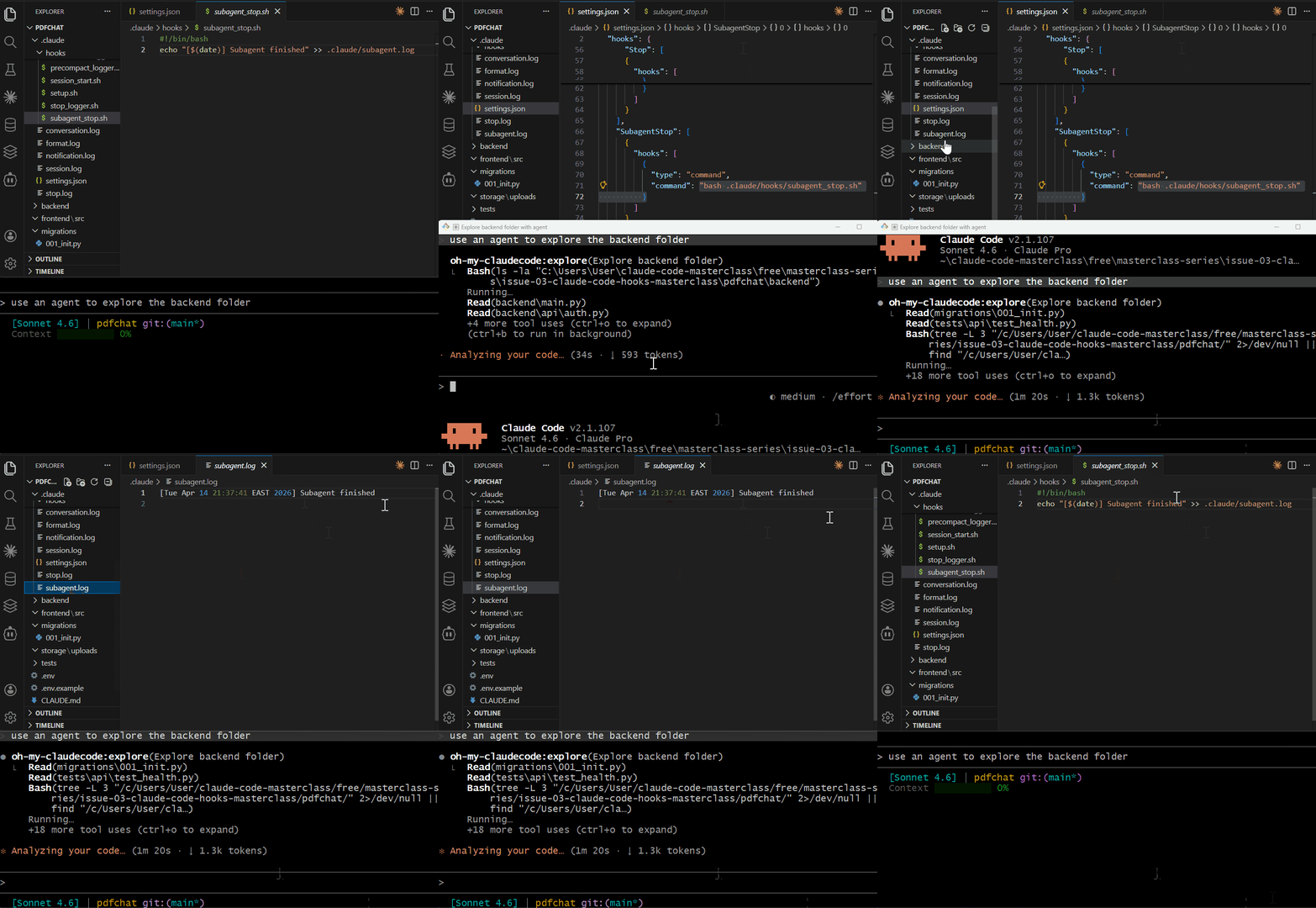
You would use this when Claude processes multiple PDFs in parallel and needs to combine results.
10. SubagentStart Hook
There's a matching SubagentStart event that fires when a subagent spawns
11. SessionEnd Hook
When it fires: When a session terminates: closing Claude Code, /clear, or logout
Runs: Once, at session termination.
Use case: Final cleanup, save logs, backup state.
For PDFChat, save the session transcript:
{
  "hooks": {
    "SessionEnd": [
      {
        "hooks": [
          { "type": "command", "command": "bash .claude/hooks/session_end.sh" }
        ]
      }
    ]
  }
}
Script Example :
#!/bin/bash
# .claude/hooks/session_end.sh
TRANSCRIPT=$(jq -r '.transcript_path')
mkdir -p .claude/backups
cp "$TRANSCRIPT" ".claude/backups/session_$(date +%s).jsonl"
exit 0
For my test, I'll log when I close Claude Code. The SessionEnd hook fires once when the session terminates — perfect for cleanup and final logging.
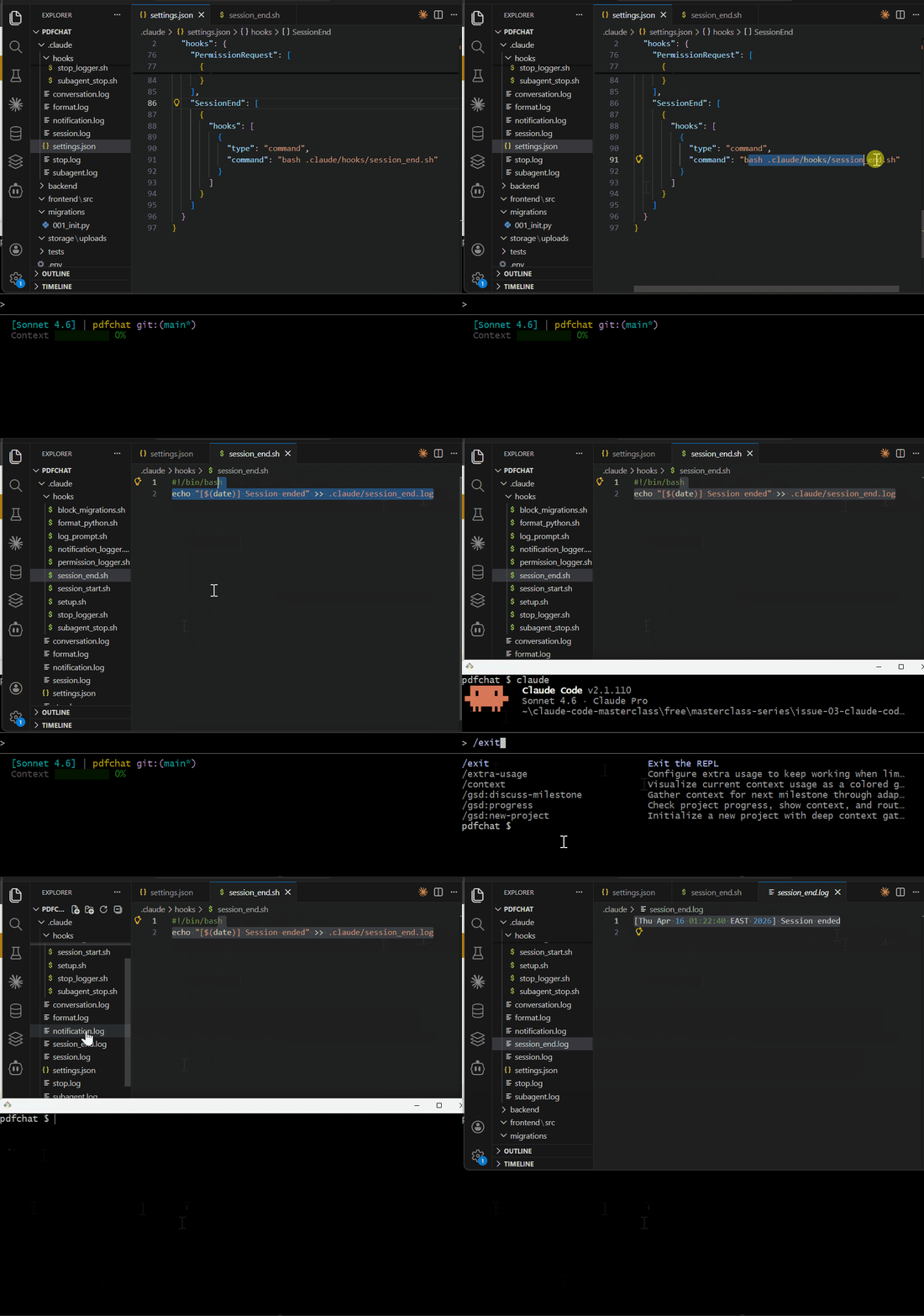
When I
/exitor close Claude Code, this hook runs. You can use it to backup the session transcript, save final state, or log total session time.
But as I mentioned earlier, you do not need all these hooks in one project. For our project, the most useful hooks are:
SessionStart - Verify services are ready
PreToolUse - Block dangerous operations
PostToolUse - Auto-format and test
UserPromptSubmit - Inject live context into every prompt
Stop - Summarize changes
The others exist for specialized use cases. For your start, I recommend these five.
The next step: when you need to run more than one hook at a time, you apply parallel execution.
Parallel Execution
This is useful when multiple hooks match the same event; they all run in parallel. For our project, I can run these two hooks in parallel :
{
  "hooks": {
    "PostToolUse": [
      {
        "matcher": "Edit|Write",
        "hooks": [
          { "type": "command", "command": "bash .claude/hooks/format_python.sh" },
          { "type": "command", "command": "bash .claude/hooks/lint_python.sh" }
        ]
      }
    ]
  }
}
Both hooks fire simultaneously after editing a Python file.
Next, let’s look at the hooks configuration syntax and how to write these hooks in
.claude/settings.json.
Identical handlers are automatically deduplicated: command hooks by command string; HTTP hooks by URL. If two settings files register the same hook, the hook runs only once.
Hook Configuration Anatomy
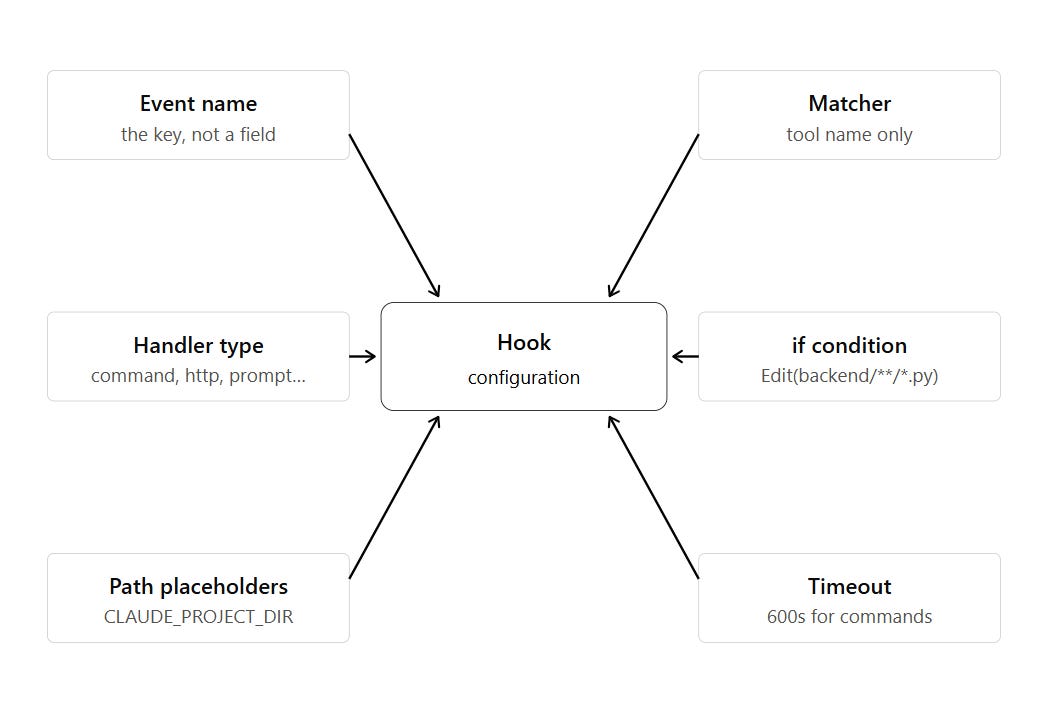
Hooks come from six places:
~/.claude/settings.json— All your projects.claude/settings.json— This project, committed.claude/settings.local.json—This project, gitignoredManaged policy settings—Organization-widePlugin hooks/hooks.json—While the plugin is enabledSkill or agent frontmatter— While that component is active
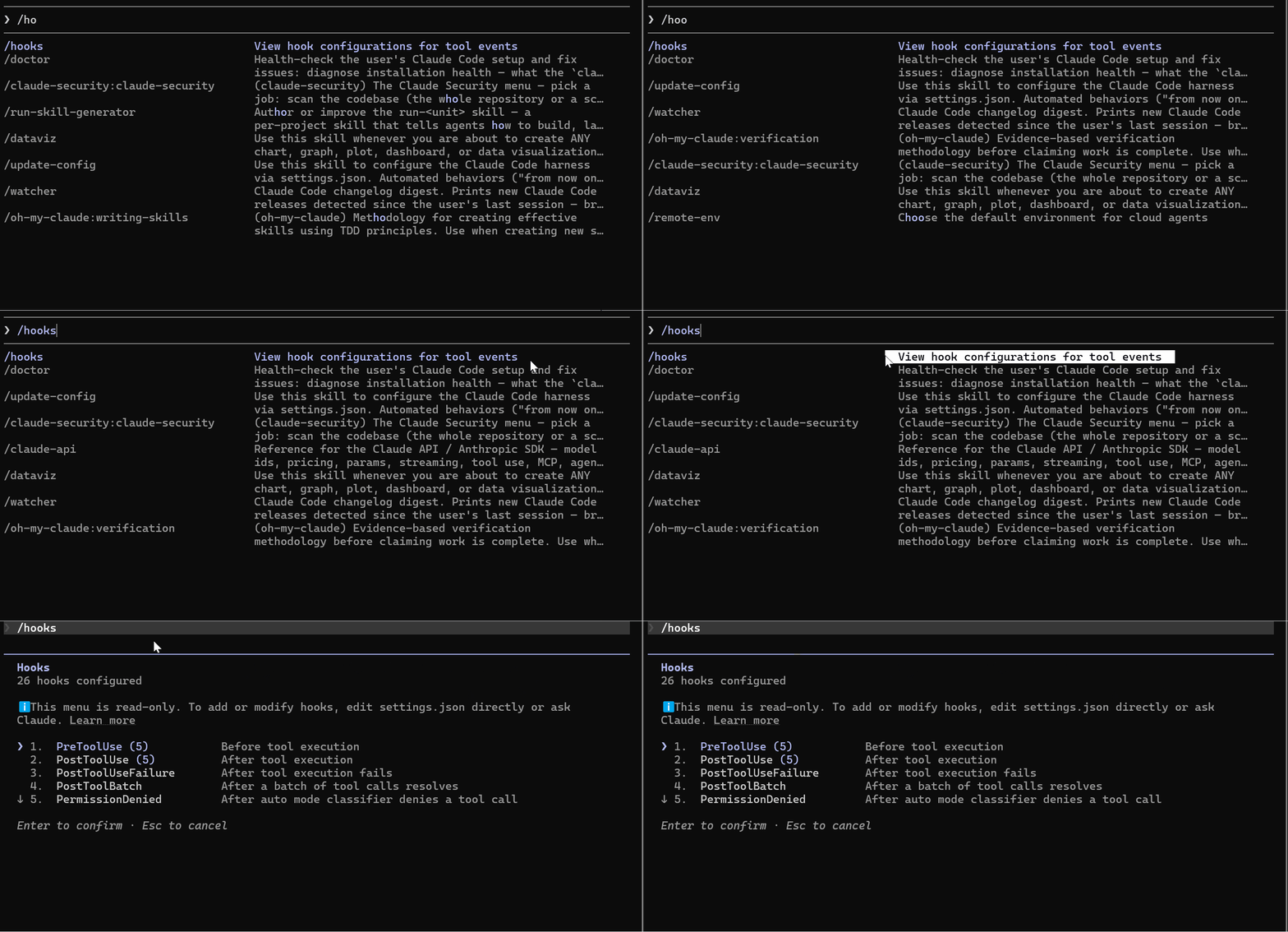
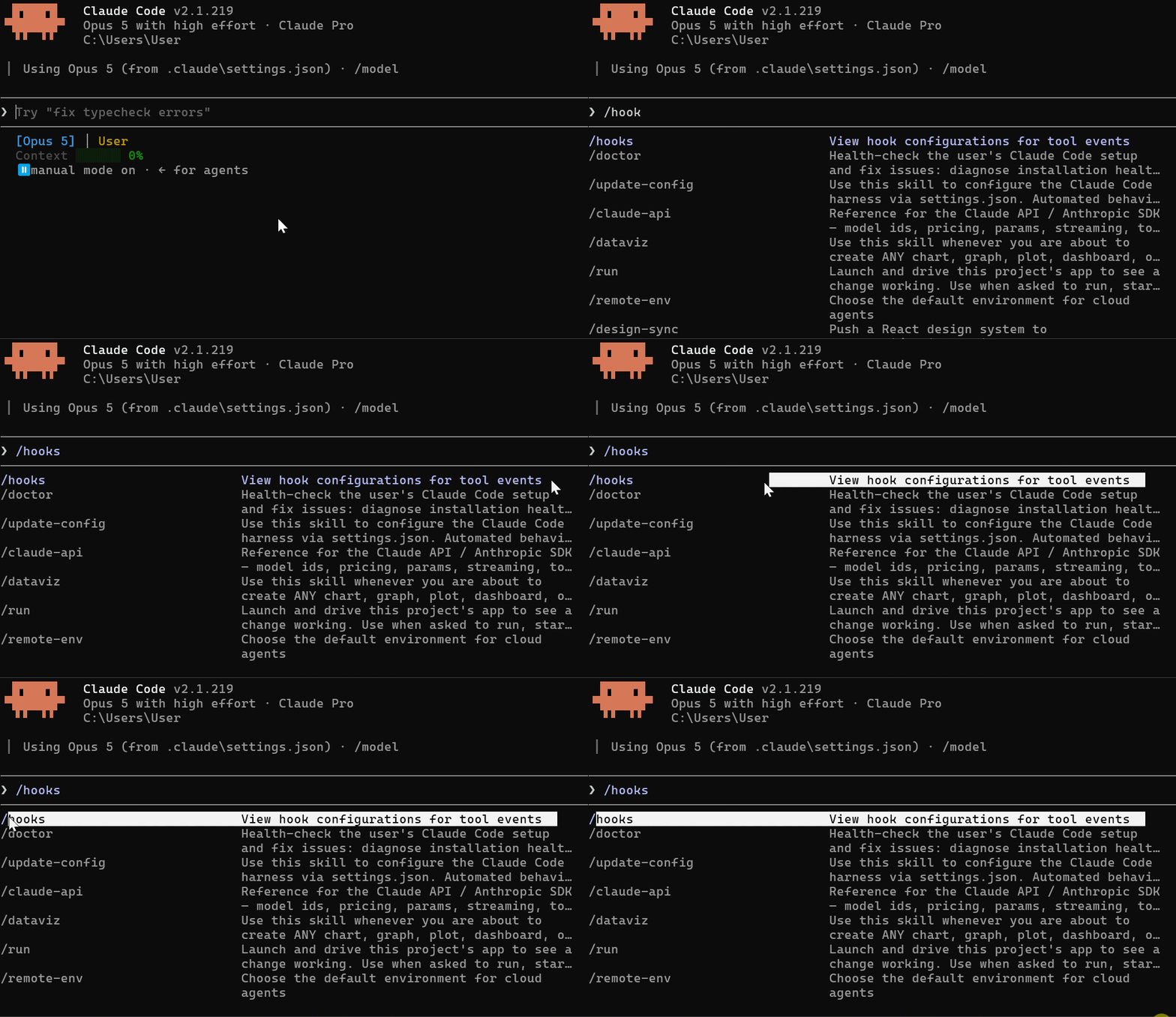
/hooks opens a read-only browser showing every configured hook, its type, and which file it came from.
The best example of hooks is those that in .claude/settings.json.
This file is located in your project root and defines every hook Claude Code will execute; this is the best place to begin learning how to write your custom hooks.
Let’s break down the configuration syntax so you can write your own hooks confidently.
To master the hooks syntax, you need to understand these six things :
Basic structure
Matcher object
Matcher Fields
Path Patterns
Environmental variables
Timeout configuration
Let’s cover each with an example:
1. Basic Structure
Here’s what .claude/settings.json looks like for our project:
{
  "hooks": {
    "SessionStart": [
      {
        "hooks": [
          {
            "type": "command",
            "command": "bash .claude/hooks/session_start.sh"
          }
        ]
      }
    ]
  }
}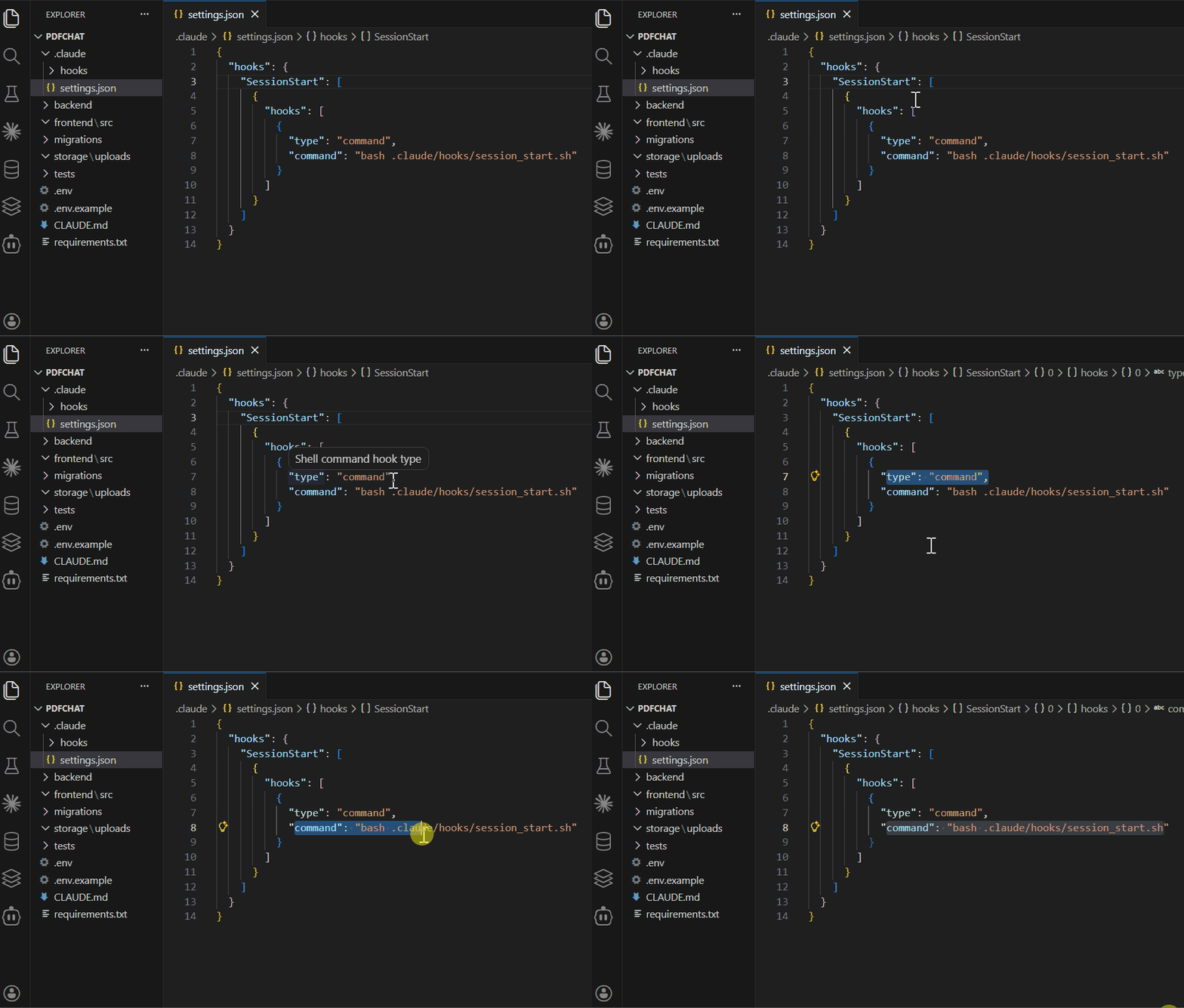
Every hook configuration has three levels:
The event name — the key under
hooks, likePreToolUseorStopA matcher group — filters when it fires
One or more handlers — each with a
type(command,http,mcp_tool,prompt,agent) and what to run
2. Matcher Object
Matchers filter when hooks execute. Without a matcher, the hook fires on every instance of that event type. With a matcher, it only fires when conditions match.
For our project, we only want to format Python files when they're edited or written:
{
  "hooks": {
    "PostToolUse": [
      {
        "matcher": "Edit|Write",
        "hooks": [
          {
            "type": "command",
            "command": "bash .claude/hooks/format_python.sh"
          }
        ]
      }
    ]
  }
}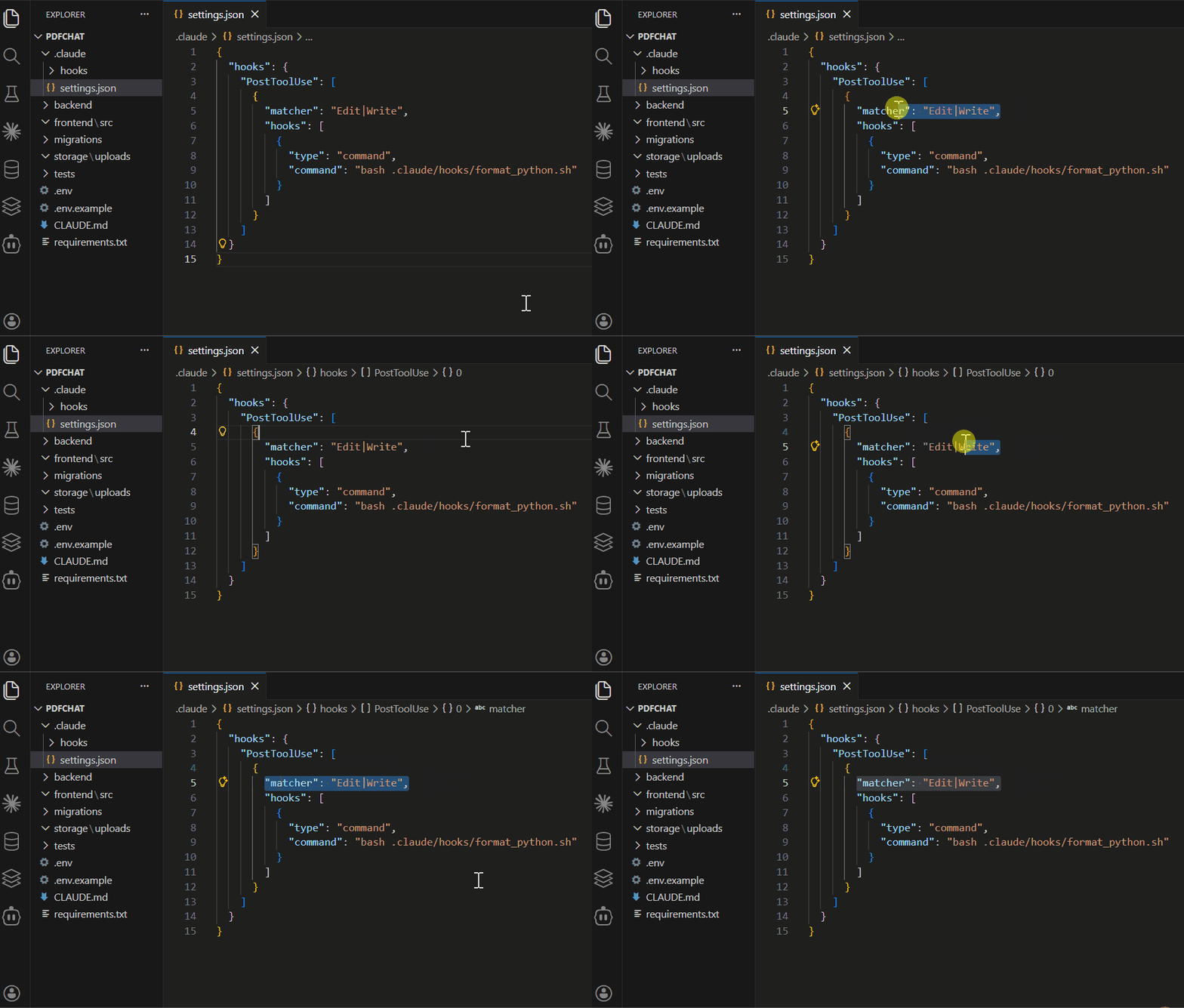
The hook fires only when:
Tool is
Edit or Write (not Bash, Read, etc.)
Note: To filter by file path, your script reads the JSON input from stdin and checks the path itself; there's no pathPattern field in the matcher.
3. Matcher Fields
Different hook types support different matchers :
For PreToolUse and PostToolUse:
{
  "matcher": "Edit|Write"
}
Matches tool names: Edit, Write, Bash, Read, Glob, Grep, Task, NotebookEdit, WebFetch, WebSearch
For Notification:
{
  "matcher": "permission_prompt"
}
Matches notification types: permission_prompt, idle_prompt, auth_success, elicitation_dialog,elicitation_complete, elicitation_response, agent_needs_input, agent_completed
For SessionStart:
{
  "matcher": "startup|resume"
}
Matches how the session started: startup, resume, clear, compact and fork (a session forked from another).
For SessionEnd:
{
  "matcher": "clear|logout"
}
Matches why the session ended: clear, resume, logout, prompt_input_exit, bypass_permissions_disabled and other.
How a Matcher is Evaluated
How the matcher is read depends on what's in it:
*, "", or omitted:Matches everythingLetters, digits, _, -, spaces, ,, | :Exact string, or a list —Edit|Writematches eitherAnything else: A regular expression, unanchored
Two things to watch:
Edit.*also matchesNotebookEdit, so anchor it as^Edit$if you mean only Edit.And matching every tool from an MCP server needs the
.*—mcp__memorymatches nothing,mcp__memory__.*matches all of them
Some event ignore matchers:
UserPromptSubmit,Stop,PostToolBatch,MessageDisplay,CwdChanged,TaskCreated,TaskCompleted,WorktreeCreateandWorktreeRemovedon't support matchers.
4. Path Patterns (Globs)
Path patterns use glob syntax to match files.
However, path filtering happens inside your script, not in the matcher field. The matcher only filters by tool name.
Here are the patterns you’ll use most with examples:
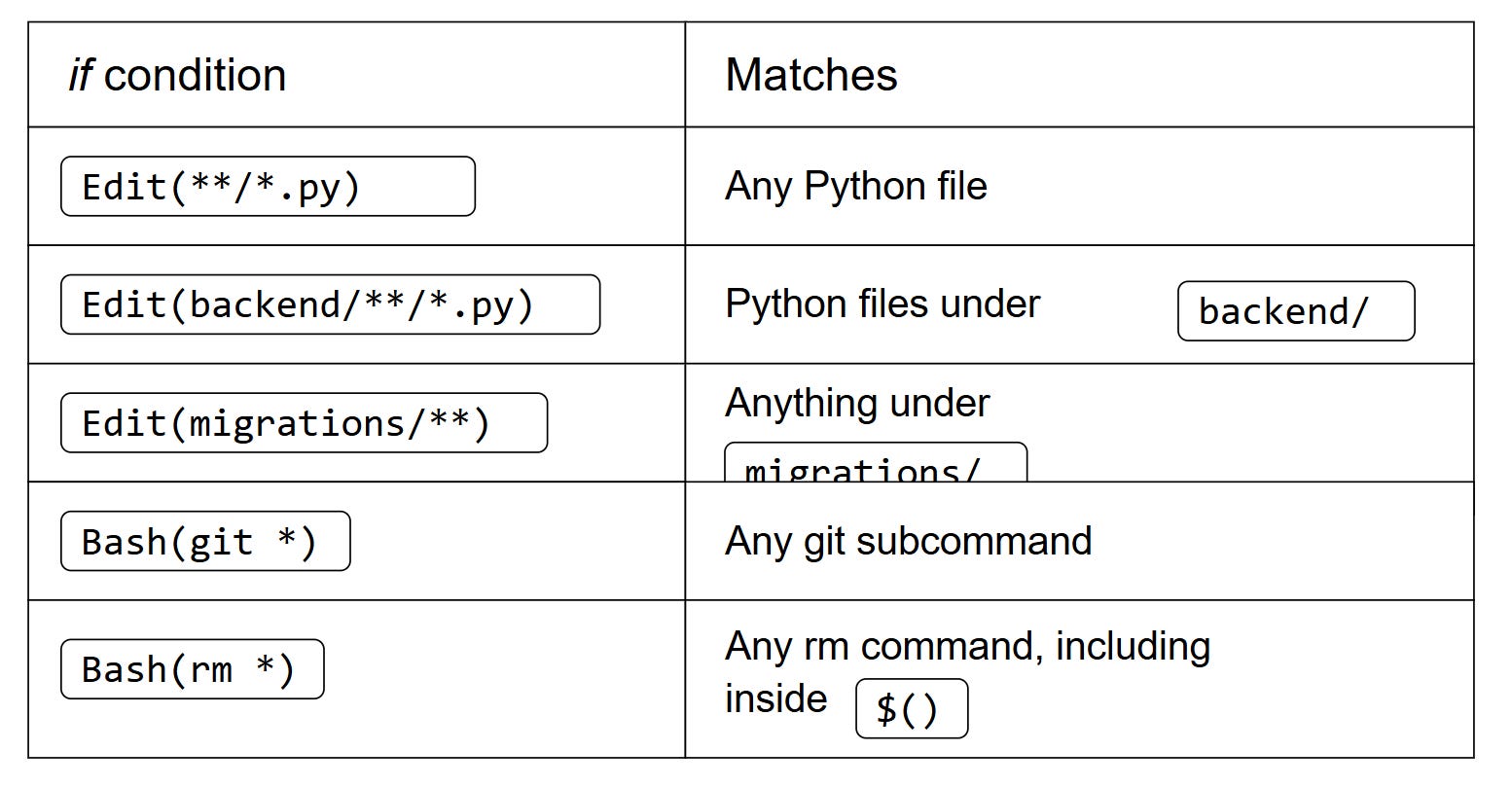
For our project, filtering by path in the script:
#!/bin/bash
# .claude/hooks/format_by_path.sh

INPUT=$(cat)
FILE=$(echo "$INPUT" | grep -o '"file_path":"[^"]*"' | cut -d'"' -f4)

# Match backend/**/*.py
if [[ "$FILE" == *"backend/"* && "$FILE" == *.py ]]; then
  black "$FILE"
fi

# Match migrations/**/*.py - block with exit 2
if [[ "$FILE" == *"migrations/"* && "$FILE" == *.py ]]; then
  echo "Use alembic instead" >&2
  exit 2
fi

# Match frontend/**/*.js or frontend/**/*.jsx
if [[ "$FILE" == *"frontend/"* && ("$FILE" == *.js || "$FILE" == *.jsx) ]]; then
  prettier --write "$FILE"
fi

exit 0
5. Environment Variables
Hooks have access to special environment variables:
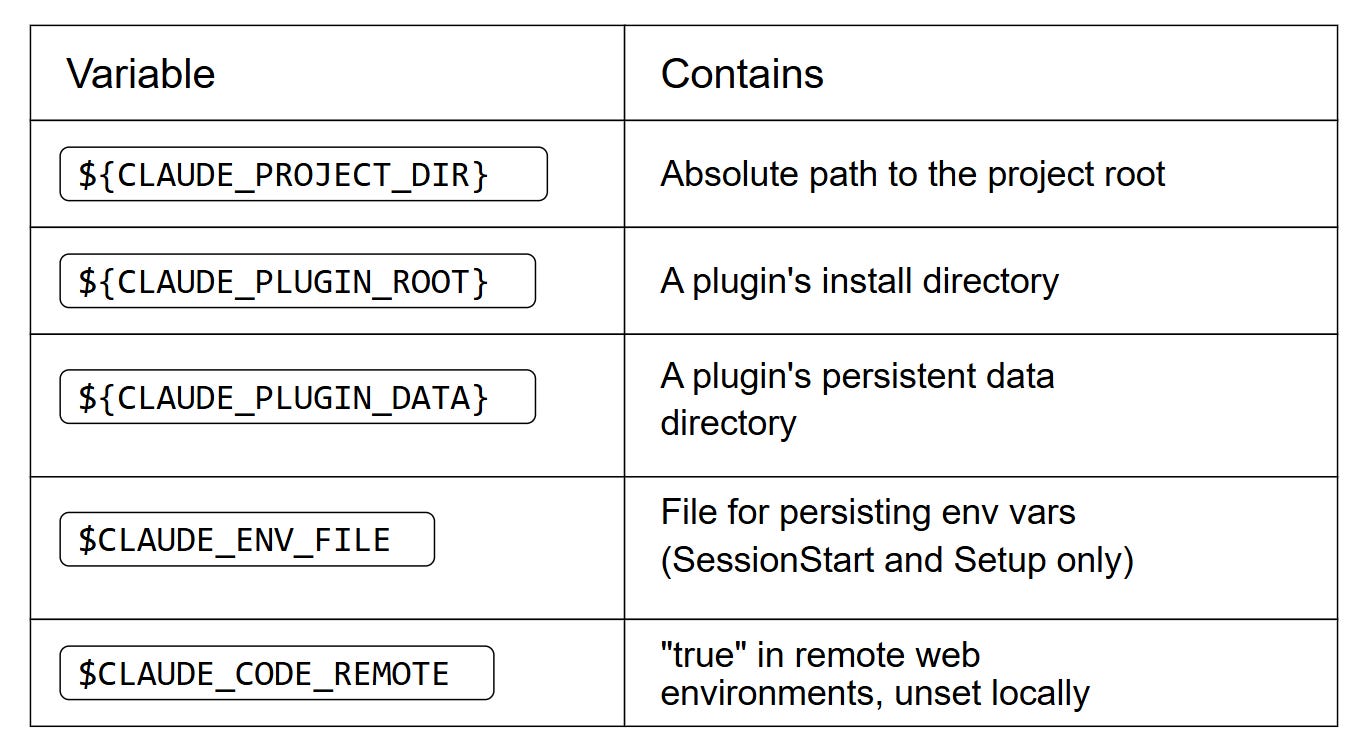
For our project, SessionStart hook:
{
  "hooks": {
    "SessionStart": [
      {
        "hooks": [
          {
            "type": "command",
            "command": "cd ${CLAUDE_PROJECT_DIR} && python .claude/hooks/session_start.py"
          }
        ]
      }
    ]
  }
}
For PostToolUse hooks, the file path arrives on stdin. Read it in your script:
#!/bin/bash
# .claude/hooks/format_python.sh
FILE=$(jq -r '.tool_input.file_path')
black "$FILE" && pylint "$FILE"
exit 0
{
"hooks": {
"PostToolUse": [
{
"matcher": "Edit|Write",
"hooks": [
{
"type": "command",
"command": "bash .claude/hooks/format_python.sh"
}
]
}
]
}
}So far, we’ve only used command-type hooks, which execute bash commands.
As I mentioned earlier, there are also prompt-type hooks . Here is a simple example:
{
  "hooks": {
    "PreToolUse": [
      {
        "matcher": "Edit|Write",
        "hooks": [
          {
            "type": "prompt",
            "if": "Edit(backend/models/**/*.py)",
            "prompt": "Does this change alter the database schema? If yes, block it and tell the user to generate a migration instead."
          }
        ]
      }
    ]
  }
}
Hook fires
Claude analyzes the change using the prompt
Claude responds YES or NO
Appropriate commands run based on the response
6. Timeout Configuration
By default, hooks timeout after 600 seconds. For most projects that's long — but for slow operations you may want to cap it sooner or raise it :
{
  "hooks": {
    "PostToolUse": [
      {
        "matcher": "Edit|Write",
        "hooks": [
          {
            "type": "command",
            "command": "pytest tests/",
            "timeout": 300
          }
        ]
      }
    ]
  }
}
This caps the test suite at 5 minutes.
We can implement this in our project’s embedding tests (which can be slow):
{
  "hooks": {
    "PostToolUse": [
      {
        "matcher": "Edit|Write",
        "hooks": [
          {
            "type": "command",
            "if": "Edit(backend/services/embeddings.py)",
            "command": "pytest tests/test_embeddings.py -v",
            "timeout": 180
          }
        ]
      }
    ]
  }
}
Decision Control
Hooks don’t just run commands. They make decisions that control what Claude does next.
Every hook returns an exit code. That exit code tells Claude whether to proceed, block, or handle the situation differently.
Exit Codes: The Control Mechanism
When a hook finishes executing, it returns an exit code. Only 0 and 2 are special: any other value is a non-blocking error.
Claude reads this code and acts accordingly.
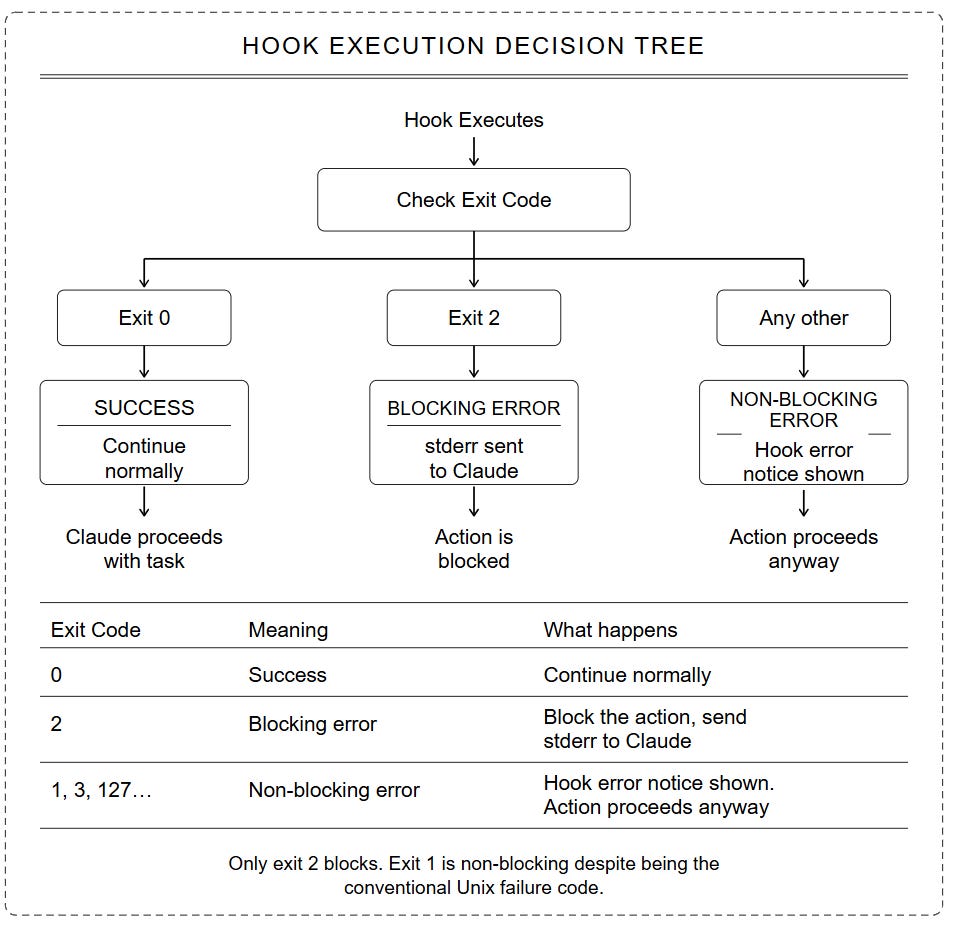
For PDFChat, this is how we enforce it.
Exit Code 0: Allow
Exit code 0 means “everything is fine, proceed.”
For a SessionStart hook that checks database connectivity:
#!/bin/bash
# .claude/hooks/session_start.sh

# Check if PostgreSQL is running
pg_isready -h localhost -p 5432

if [ $? -eq 0 ]; then
  echo "Database connected"
  exit 0  # Allow session to continue
else
  echo "Database not running"
  exit 0  # Still allow (just warn)
fi
What happens: Hook runs, prints status, session continues regardless. Useful for informational checks.
Exit Code 2: Deny
Exit code 2 means “block this operation.”
For PDFChat, we never want Claude editing migration files directly:
#!/bin/bash
# .claude/hooks/block_migrations.sh

echo "Direct migration edits are blocked." >&2
echo "Use: alembic revision --autogenerate -m 'description'" >&2
exit 2
Hook configuration:
{
  "hooks": {
    "PreToolUse": [
      {
        "matcher": "Bash",
        "hooks": [
          {
            "type": "command",
            "if": "Bash(rm *)",
            "command": "bash .claude/hooks/protect_uploads.sh"
          }
        ]
      }
    ]
  }
}
#!/bin/bash
CMD=$(jq -r '.tool_input.command')
if [[ "$CMD" == *storage/uploads* ]]; then
echo "Cannot delete user uploads directly." >&2
echo "Use: python scripts/cleanup_uploads.py --safe" >&2
exit 2
fi
exit 0What happens: Claude tries to edit a migration file. Hook fires. Exit code 2 blocks it. Claude sees the error message and suggests an alternative.
Conditional Logic in Hooks
Use exit codes to implement smart decisions.
For PDFChat, only run tests if the change affects API logic:
#!/bin/bash
FILE=$(jq -r '.tool_input.file_path')

if [[ "$FILE" == *backend/api/* || "$FILE" == *backend/services/* ]]; then
  pytest tests/ -v || {
    echo "Tests failed after editing $FILE" >&2
    exit 2
  }
fi
exit 0
What happens: Edit a config file? No tests. Edit the chat API? Tests run. Hook decides dynamically.
Chaining Decisions
Use && and || for sequential logic. If any step fails, the chain stops.
For PDFChat, ensure formatting succeeds before testing:
#!/bin/bash
# .claude/hooks/format_and_test.sh
FILE=$(jq -r '.tool_input.file_path')

black "$FILE" && pytest tests/api/ -v || {
  echo "Pipeline failed on $FILE" >&2
  exit 2
}

exit 0
{
"hooks": {
"PostToolUse": [
{
"matcher": "Edit|Write",
"hooks": [
{
"type": "command",
"if": "Edit(backend/api/**/*.py)",
"command": "bash .claude/hooks/format_and_test.sh"
}
]
}
]
}
}What happens: Black formats the file. If formatting fails, pytest never runs. The error goes to Claude via stderr so it knows what to fix.
JSON Responses (Advanced)
Some hooks can return JSON for richer control: allowing, denying, escalating to you, or rewriting a tool’s arguments. This is the way to go beyond a simple block.
The rule is simple: always exit 0 when returning JSON. The JSON carries the decision, not the exit code.
{
  "hooks": {
    "PreToolUse": [
      {
        "matcher": "Edit|Write",
        "hooks": [
          {
            "type": "command",
            "if": "Edit(backend/models/**/*.py)",
            "command": "python .claude/hooks/validate_change.py"
          }
        ]
      }
    ]
  }
}
Example script:
#!/usr/bin/env python3
import json
import sys

is_safe = validate_operation()

if is_safe:
    sys.exit(0)  # No decision needed — normal permission flow continues

# Deny and tell Claude why
print(json.dumps({
    "hookSpecificOutput": {
        "hookEventName": "PreToolUse",
        "permissionDecision": "deny",
        "permissionDecisionReason": "This change affects the database schema. Generate a migration with: alembic revision --autogenerate -m 'description'"
    }
}))

sys.exit(0)  # Exit 0 — the JSON carries the deny decision
permissionDecisionaccepts four values:allow,deny,ask(escalate to you), anddefer(pass to the next hook).
Claude reads the reason and knows what to do instead.
Key Takeaways
Exit codes are how hooks enforce decisions:
0 = Success — no decision, unless your JSON says otherwise
2 = Block — stderr is sent back to Claude
Anything else — a non-blocking error. The action still happens
For PDFChat:
Use exit 2 to protect migrations, uploads, production files
Use exit 0 for informational hooks (logging, notifications)
Put your error message on stderr; that’s the only channel Claude reads
Next, we’ll look at production-ready hook patterns you can copy directly into PDFChat.
Production Hook Patterns
The PDFChat examples in this issue are a starting point.
In production, hooks are the automation layer that runs your entire engineering workflow: formatting, testing, protecting, alerting, and much more.
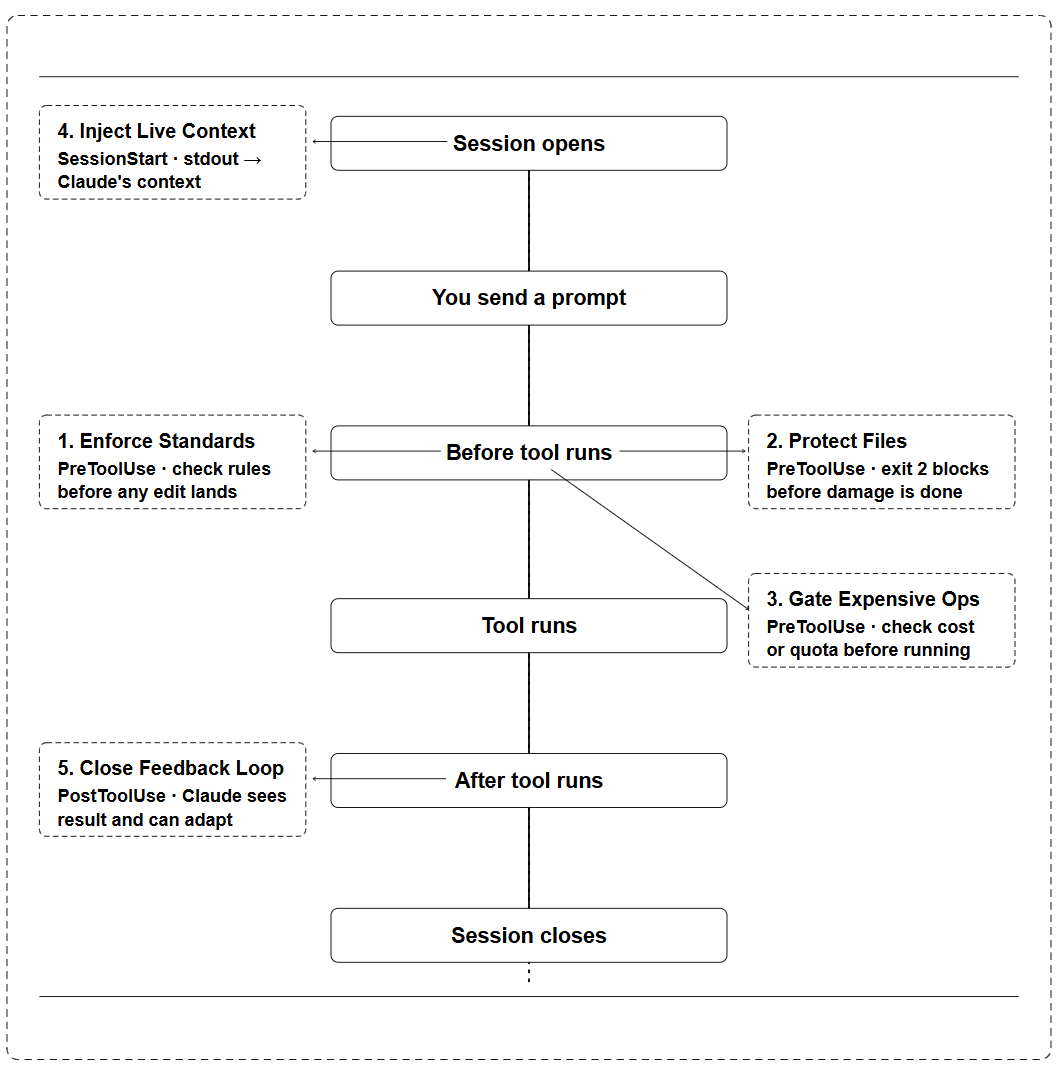
Any rule your team currently enforces through code review, documentation, or habit can become a hook.
Here are the five categories that cover most production use cases:
1. Enforce Team Standards
If your team has a rule in a doc or gets caught in PR review, it belongs in a hook.
A fintech team runs security linting on every file that touches payment logic
A data team enforces schema validation before any model file is saved
An agency enforces client-specific coding conventions per project
Hook type: PostToolUse: runs after every edit, before Claude moves on
2. Protect Sensitive Files
Some files and operations should never happen. Production configs, database migrations, generated code, deployment scripts.
Block direct edits to migration files and tell Claude to use the migration tool instead
Prevent any write to
.env.productionoutside a deployment pipelineStop
rm -rfcommands that target anything outside a temp directory
Hook type: PreToolUse: intercepts before the action happens
3. Gate Expensive Operations
When an action costs money or triggers external services, a hook can check conditions before it runs.
Check today’s OpenAI token spend before running a large embedding job
Verify the staging environment is healthy before running an integration test suite
Block API calls to third-party services when a rate limit is approaching
Hook type: PreToolUse with exit 2: blocks and gives Claude a reason
4. Inject Live Context
Claude starts every session already knowing things it can’t see in your codebase.
Which services are up or down
What’s been deployed since the last session
Current branch, open PRs, failing CI jobs
Outstanding tickets assigned to you
Hook type: SessionStart: runs once, shapes the whole session
5. Close the Feedback Loop
Claude edits a file and doesn’t know if the tests passed, the build broke, or the linter found issues. PostToolUse can fix this behaviour:
Run the affected test file after every code change
Check the build after modifying a config
Validate an API response schema after editing an endpoint
Hook type: PostToolUse — turns Claude from a one-shot editor into one that sees consequences
The full scripts for the PDFChat patterns are in the companion repo, organised by section. Use them as a starting point to learn and customize them to fit your needs.
As I mentioned in the previous Claude.MD issue, hooks and CLAUDE.md work together to build on the Claude Code complete automation system.
Hooks + CLAUDE.md
CLAUDE.md defines the rules, and hooks enforce them.
Together, they create a self-documenting, self-enforcing development environment. Claude knows what to do and can’t deviate from it.
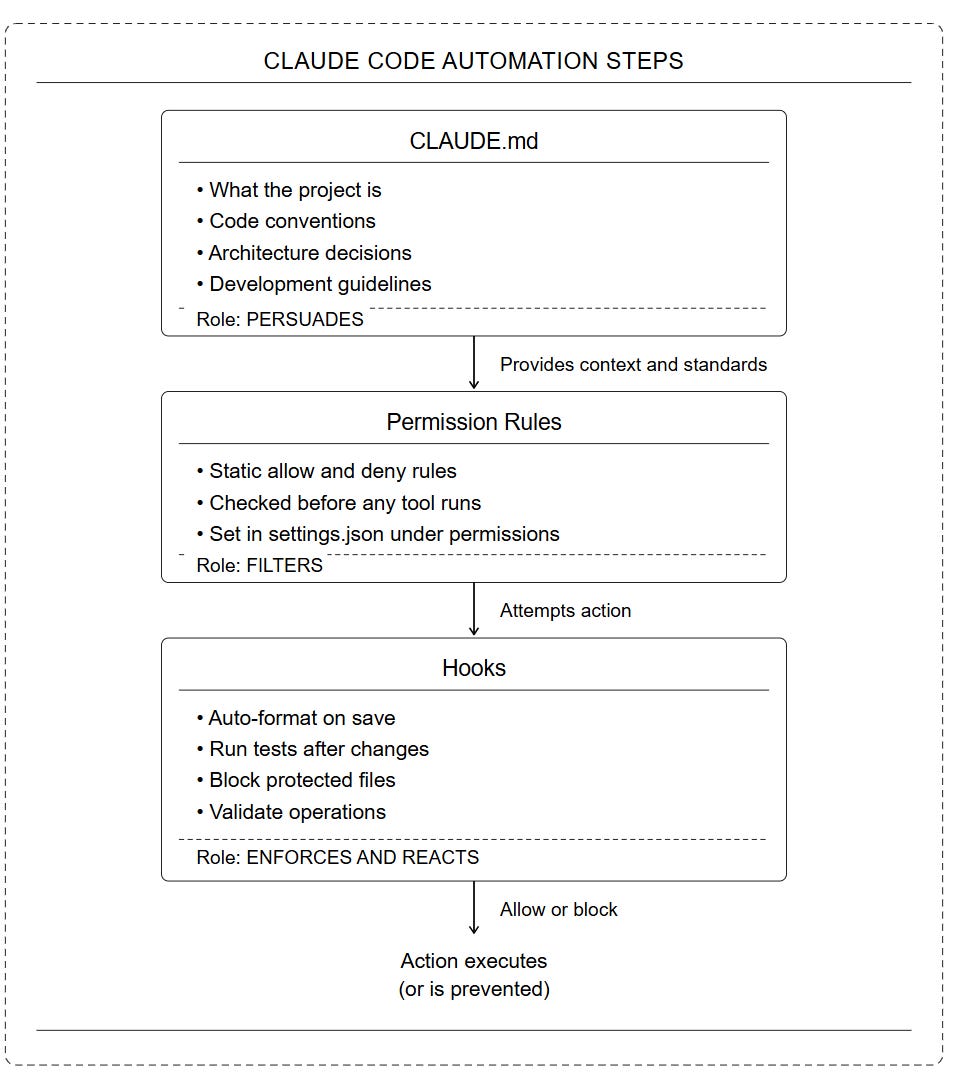
In the last Masterclass issue, we covered CLAUDE.md; the file that gives Claude persistent memory of your project and defines how it should behave.
CLAUDE.md only tells Claude what to do; it doesn’t make sure it happens.
Hooks are the enforcement layer. Since their introduction, they have become the core step towards building a complete Claude Code automated system.
Final Thoughts
Hooks are the feature that takes you from Level 2 to Level 3 on the mastery scale from Issue #1.
You now have the thing that puts you ahead of 90% of Claude Code users: automation that runs without asking.
Key takeaways:
Hooks are event listeners; they fire at specific points in Claude’s workflow, not on a schedule
Exit 2 blocks. Exit 1 does not, even though it’s the conventional Unix failure code
The file path arrives on stdin; read it with
jq. There is no${filePath}Most projects need 3–5 hooks. Start with auto-format, session checks, and protected files
SessionStart stdout goes directly into Claude’s context; use it to inject live state
PreToolUse prevents. PostToolUse reacts. Know which one you need before you write the hook
CLAUDE.md sets the rules while Hooks enforces them
In the next Masterclass issue, we'll cover Subagents: how to delegate entire tasks to Claude, coordinate parallel work, and build an AI team that operates around your codebase.
Resources
The companion repo for this issue is now live.
Every hook, every script, and the complete settings.json are organised by section: copy what you need and drop it into .claude/hooks/
For this issue, the repo includes:
All seven production hook scripts
The complete
.claude/settings.jsonfor PDFChatThe event reference table
A starter three-hook config you can add to any project in five minutes
Support Our Newsletter
Be the first to support this newsletter
Get the scripts from this issue, tested and ready to run
Access all future premium newsletters
Early access to upcoming course (14 modules) free when it launches: $297 on its own
Version-break alerts when a Claude Code release breaks a config
Access our private community
Join all upcoming live cohorts
$80/year | $8/month | $150 /year Founding Members (Limited Slots)
→ Join Claude Code Masterclass Pro
Next: Coming Up Issues
The next issues in this Masterclass Series will cover:
Claude Code Subagents Masterclass — Building your AI team
Claude Code MCP Masterclass — Extending Claude’s capabilities
Claude Code in Production — CI/CD, team configuration, enterprise deployment
Your hooks are the automation layer, while subagents are the delegation layer. Both take your setup towards a complete autonomous development pipeline.
What’s the first hook you wrote?
Reply to this email and tell me. I’ll share the most interesting ones in a future issue.
Finally, this newsletter belongs to all of us. If there’s something that can make it better or something you don’t like, please let me know.
See you in the next one.
Claude Code Masterclass
Let’s Build It Together
— Joe Njenga